Hey Folks, so I recently had the need for a front end, so I looked at the regular community ones, but they didn’t fit my needs.
TLDR: Code & Instructions on GitHub: https://github.com/gwblok/2PintLabs/tree/main/DeployR/FrontEnd/FrontEndJSONDriven
Personal Requirements
- Work in ConfigMgr OSD
- Work in DeployR OSD
- Create Variables for Both and Decent Reporting
- PowerShell, so I can edit it myself
Several I found were wrapped in an EXE so I couldn’t update the code, so I ruled those out right away. I figured if I could edit the code, I could then make them work for DeployR too.
Solution, build my own with PowerShell & VSCode (Thanks GitHub Copilot for the help)
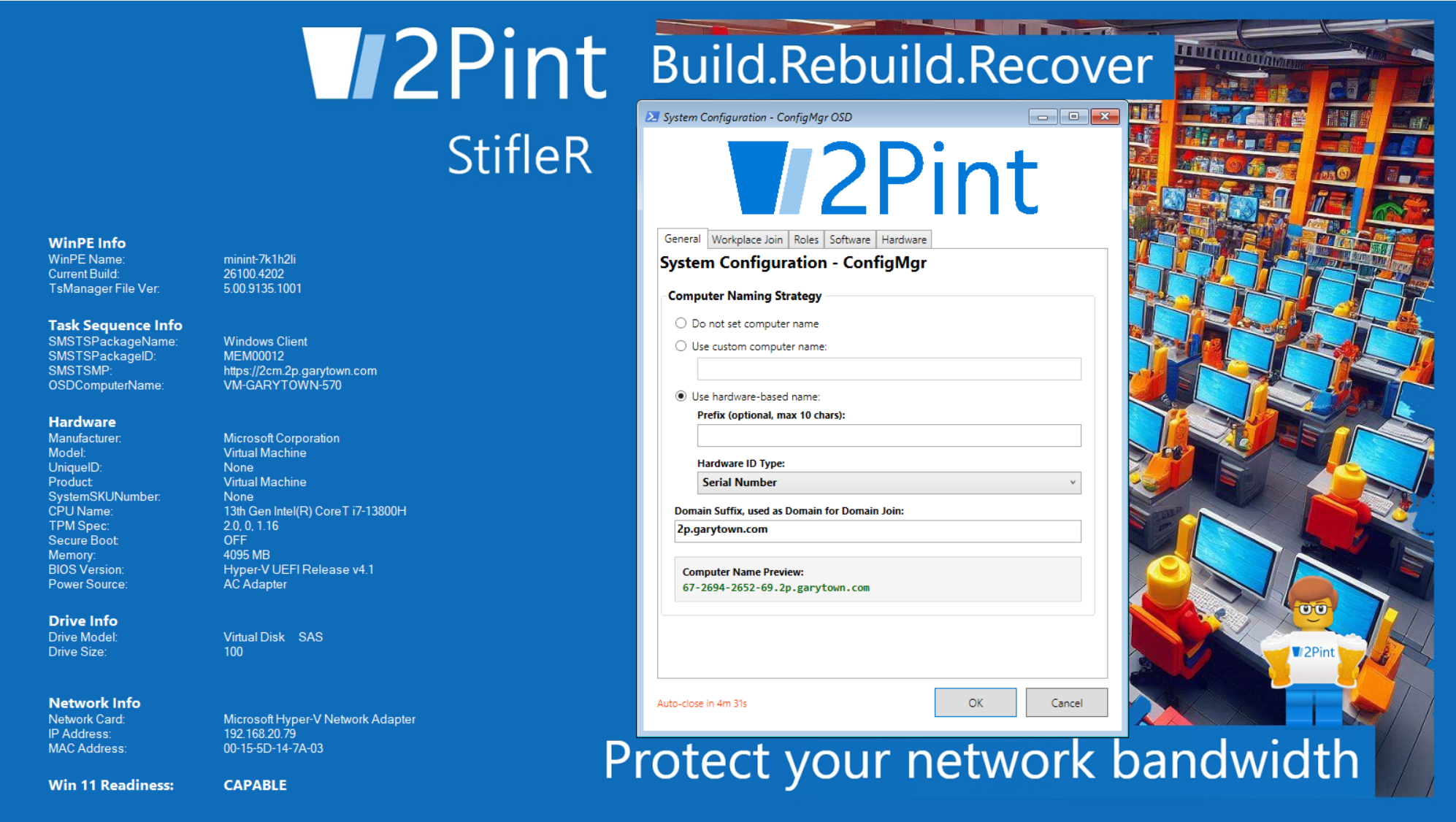
I first created it for DeployR, as that was my immediate need, I already had a custom one I had been using in ConfigMgr for years that Chris Muster created at Now Micro before starting up Recast Software. I wanted it to be easy to navigate, manage several areas of the configuration, and be semi nice looking. This is what I came up with, a Form with several tabs and some built in logic for naming, which is all driven by a JSON file to easily update drop down options.
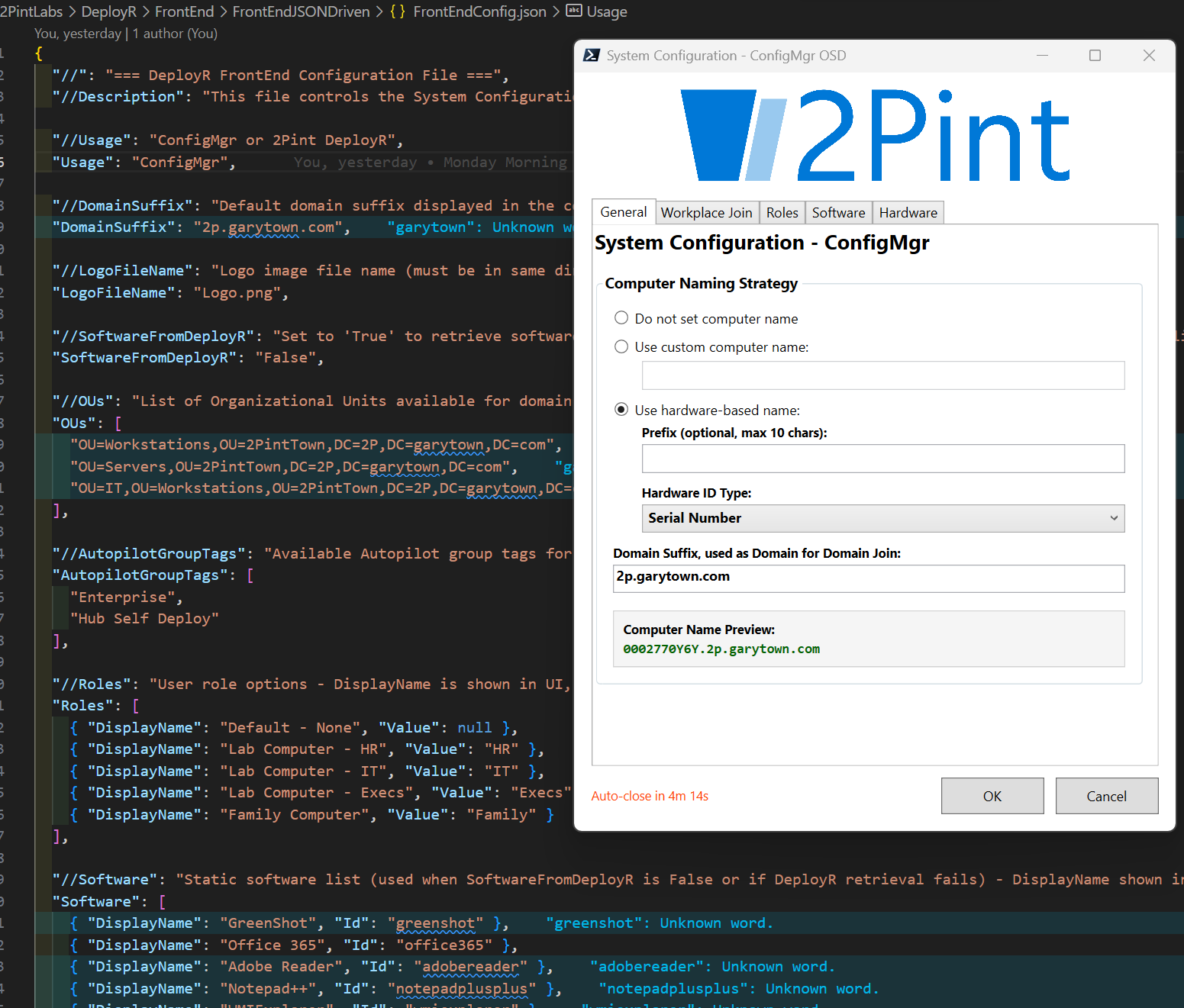
General (Computer Name)
The first tab is about naming the computer and setting the Domain. The domain is also pre-set in the JSON, but you’re able to change it if you’re imaging to a test domain. The Computer name has a few options,
- Do not set the name, if you have other processes in place to name it, or leave the random generated one that just happens, perhaps a reimage where it will just automatically use the same name it already had in ConfigMgr
- Use Custom Name, aka, type what you want
- Use a hardware based name, which will pull data from the device and use that as the name, also allowing a pre-fix to that hardware tag
- Serial Number
- MAC Address
- Asset Tag
- There is also a Preview so that you’ll see what the device is going to be named. There is also some extra logic to ensure you do not go over 15 characters and break other parts of the task sequence.
Workplace Join
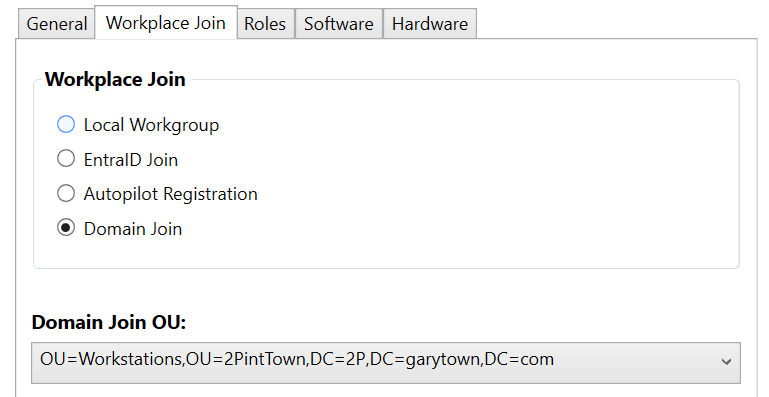
Tab 2 is workplace join, which creates variables that you can use later in your TS, remember, this is just a front end, its just creating variables, you have to have other processes in place to make these things happen. 🙂
Depending on the option you choose, you’ll get additional inputs you can provide to create yet more variables.
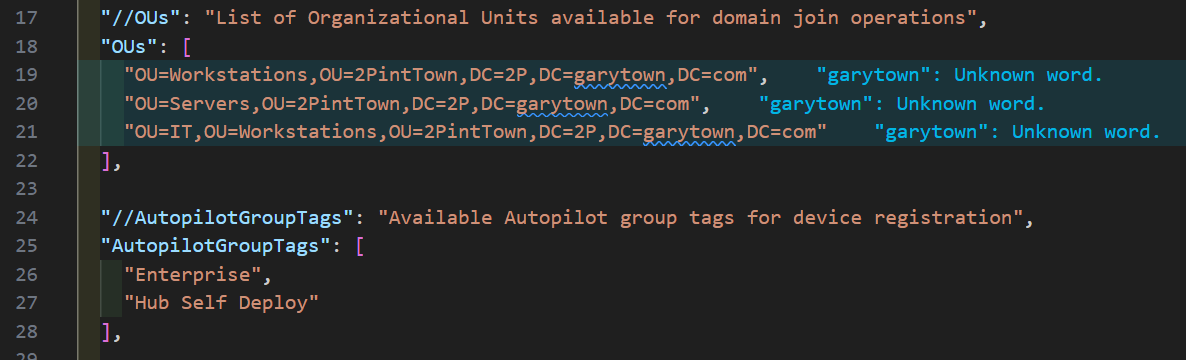
In DeployR, I have EntraID & AP Registration variables created so the steps to Join Entra or Register for AP will use the extra settings I would like. For CM, I basically just use the Domain Join option with a drop down of OUs (which are all configured in the JSON)
Roles
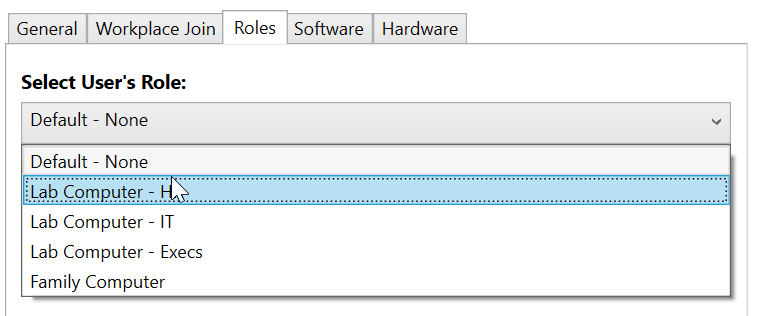
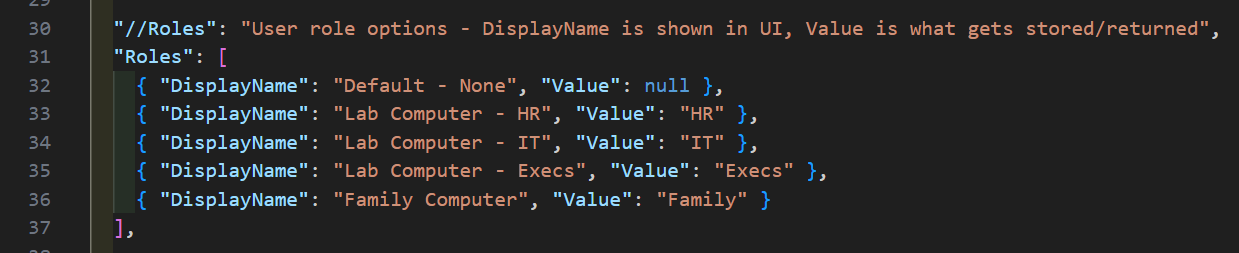
For Roles, these too are all created in the JSON, create your friendly name and your value to be set in the variable.
Software
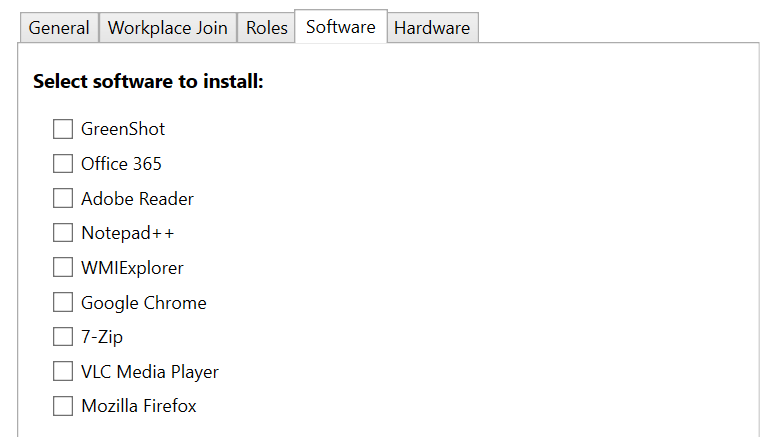
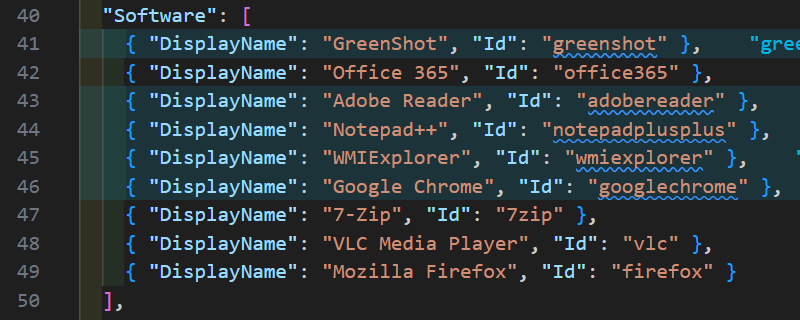
The software tab will dynamically list the software items you’ve put into the JSON file allowing you to check the boxes and having it create associated variables you can use in your TS.
Hardware
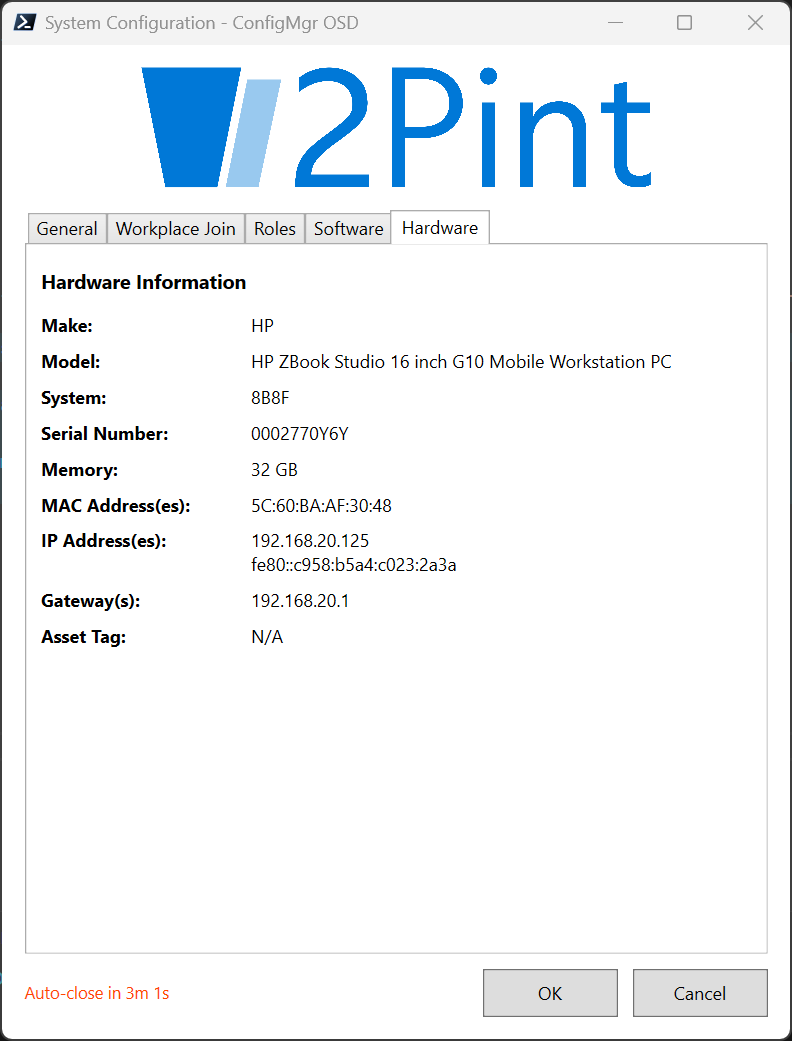
Finally, hardware, this is read only providing extra information about the device which I typically find handy
Testing in Windows
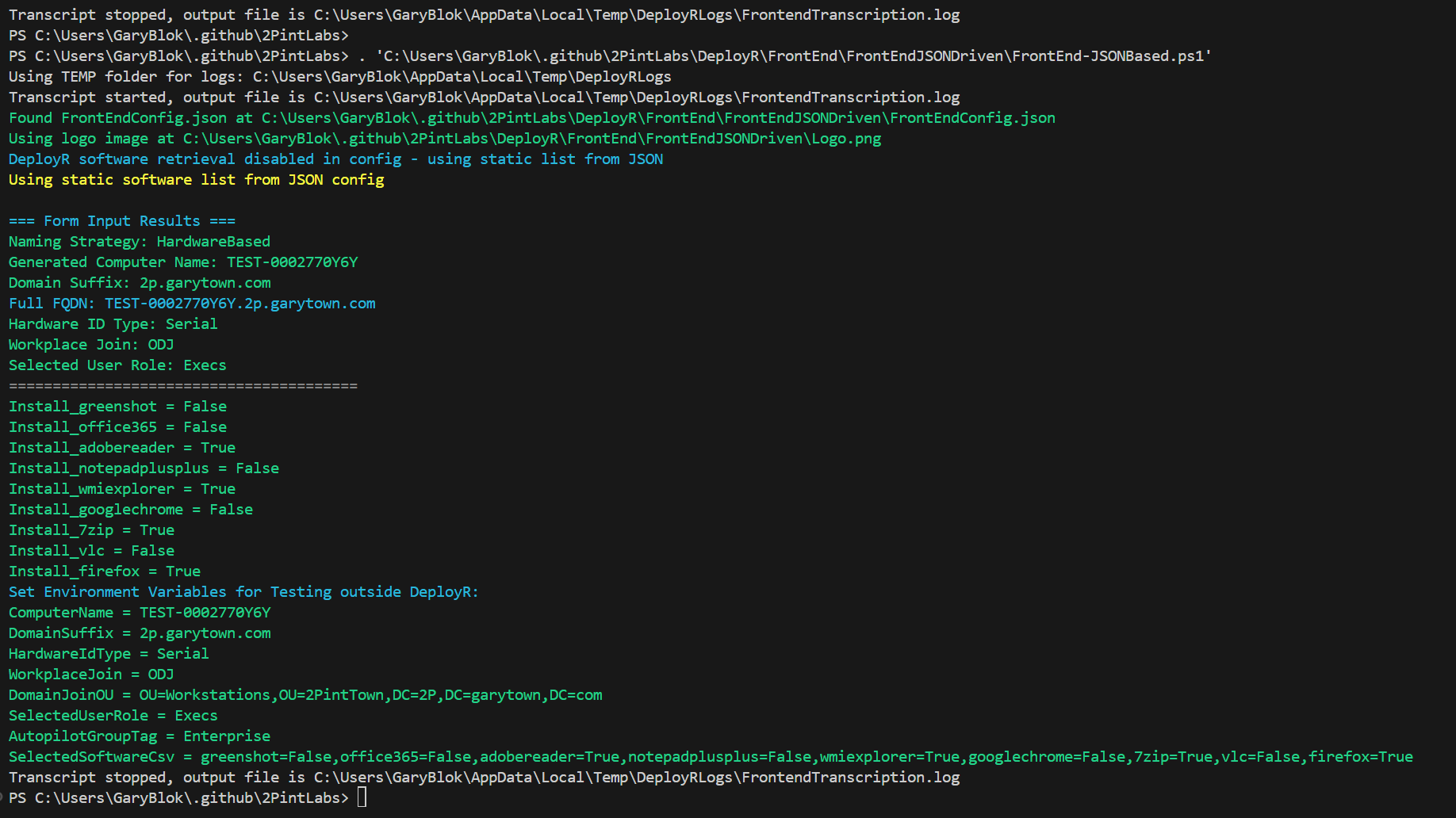
I’ve designed it so you can run it in Windows as well, allowing you to test your results before adding it into a Task Sequence. Additional logging is also built it, I should clean that up as I had created some custom logging, then eventually decided to just enable transcription. Point being, you get logging. In the Console, here is what you’ll see after you click “OK” and selecting your options.
JSON Config File
- Usage
- “ConfigMgr” or “DeployR” – This will change some of the things in the Frontend based on which system you want to run it in.
- DomainSuffix
- Used for setting OSDDomainName in ConfigMgr
- LogoFileName
- Name of the Logo file you want to show in your Frontend, it must be in the same folder as the PowerShell script and JSON config file.
- SoftwareFromDeployR
- Only for use in DeployR, future state, it will scan apps in DeployR and dynamically build list.
- OUs
- Sets OSDDomainOUName in ConfigMgr and OU in DeployR
- AutopilotGroupTags
- Used in DeployR and will set ENTRAUPN for who the primary user will be in Entra
- Roles
- Custom set you create which you could then call child task sequences, or whatever you want to leverage the same parent task sequence for ideally everything
- Software
- List of Apps you want to make available to select in your TS. Much of this would probably not be needed based on the Roles and Core Apps, but sometimes you might have a few random ones you just want to select.
ConfigMgr Task Sequence
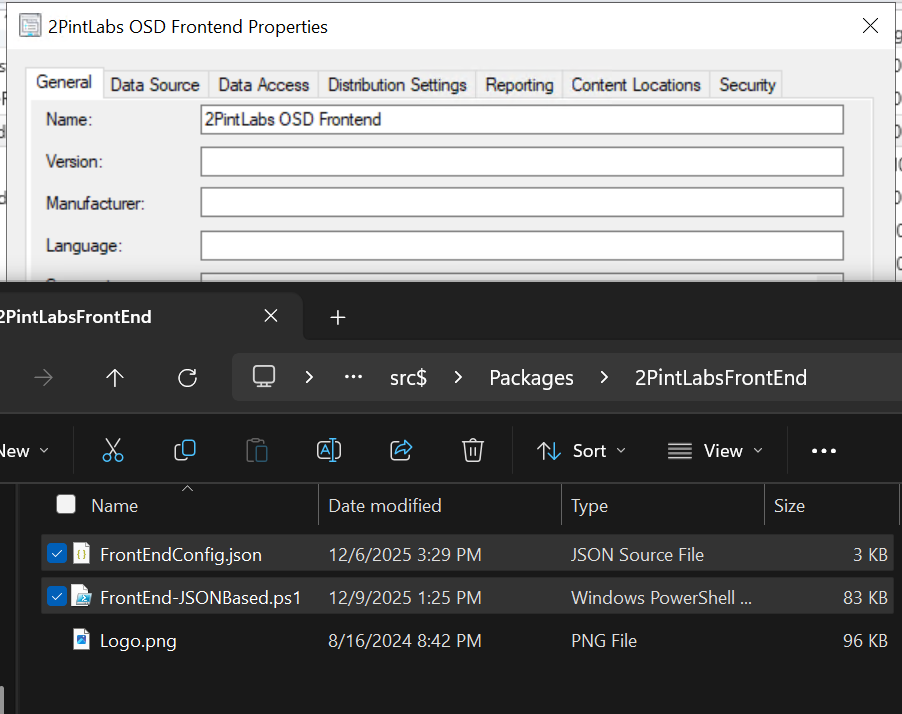
Package:
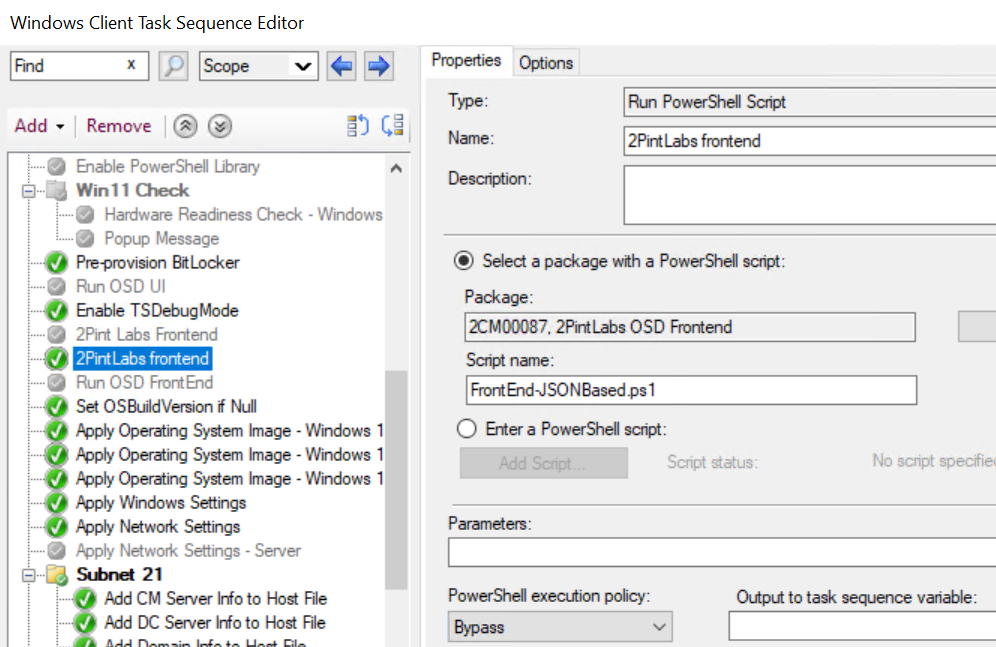
Task Sequence Editor:
Add PowerShell Step, attach package and Run Script
In Action:
Variables (shown using Debug Mode)
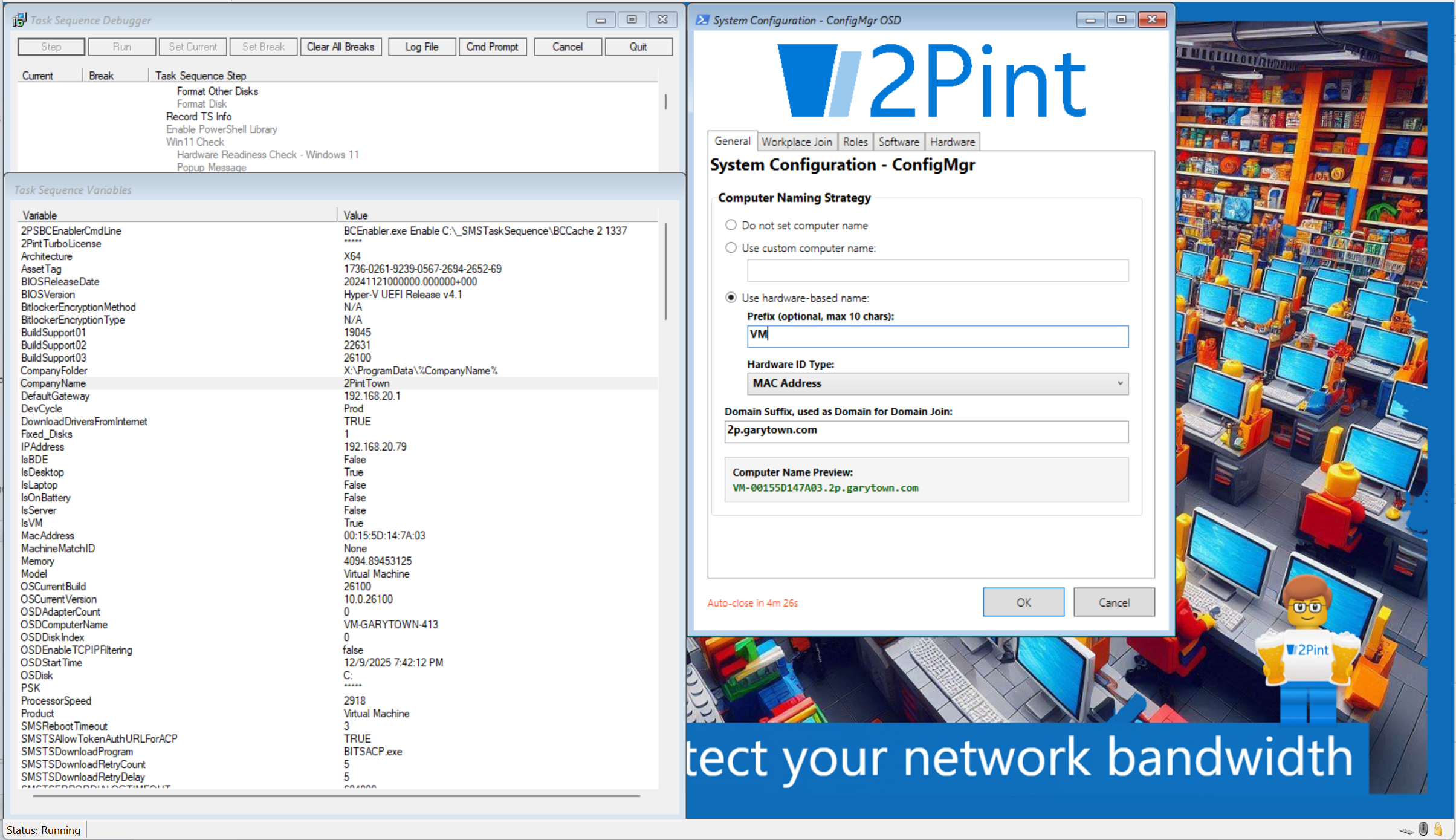
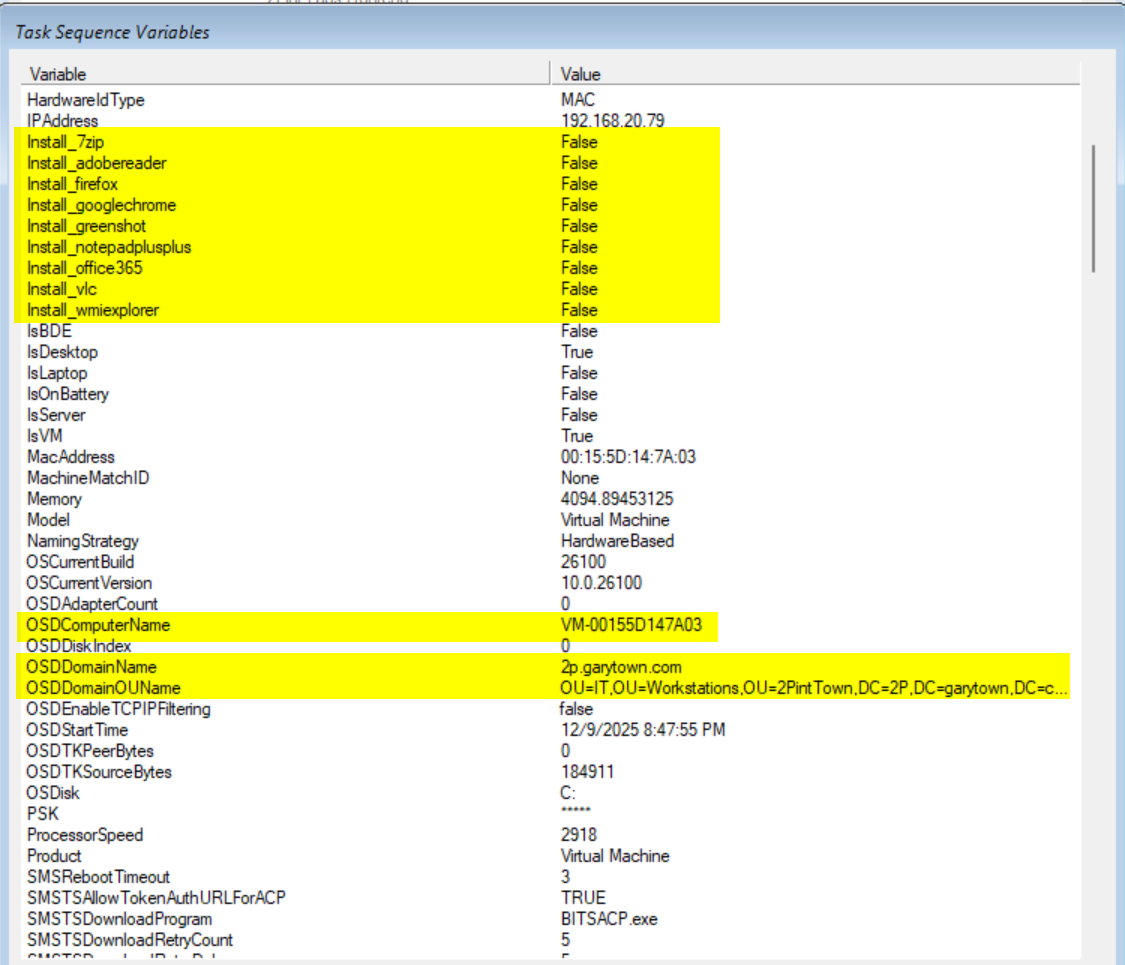
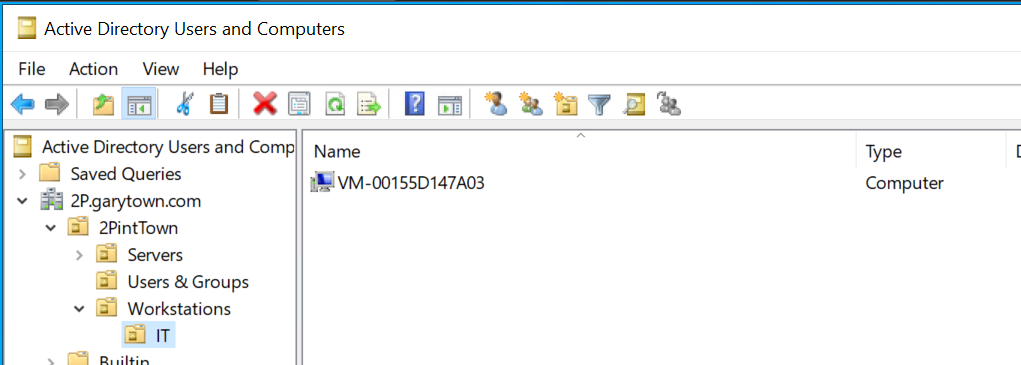
Confirmed in AD after Build:
Modify for yourself
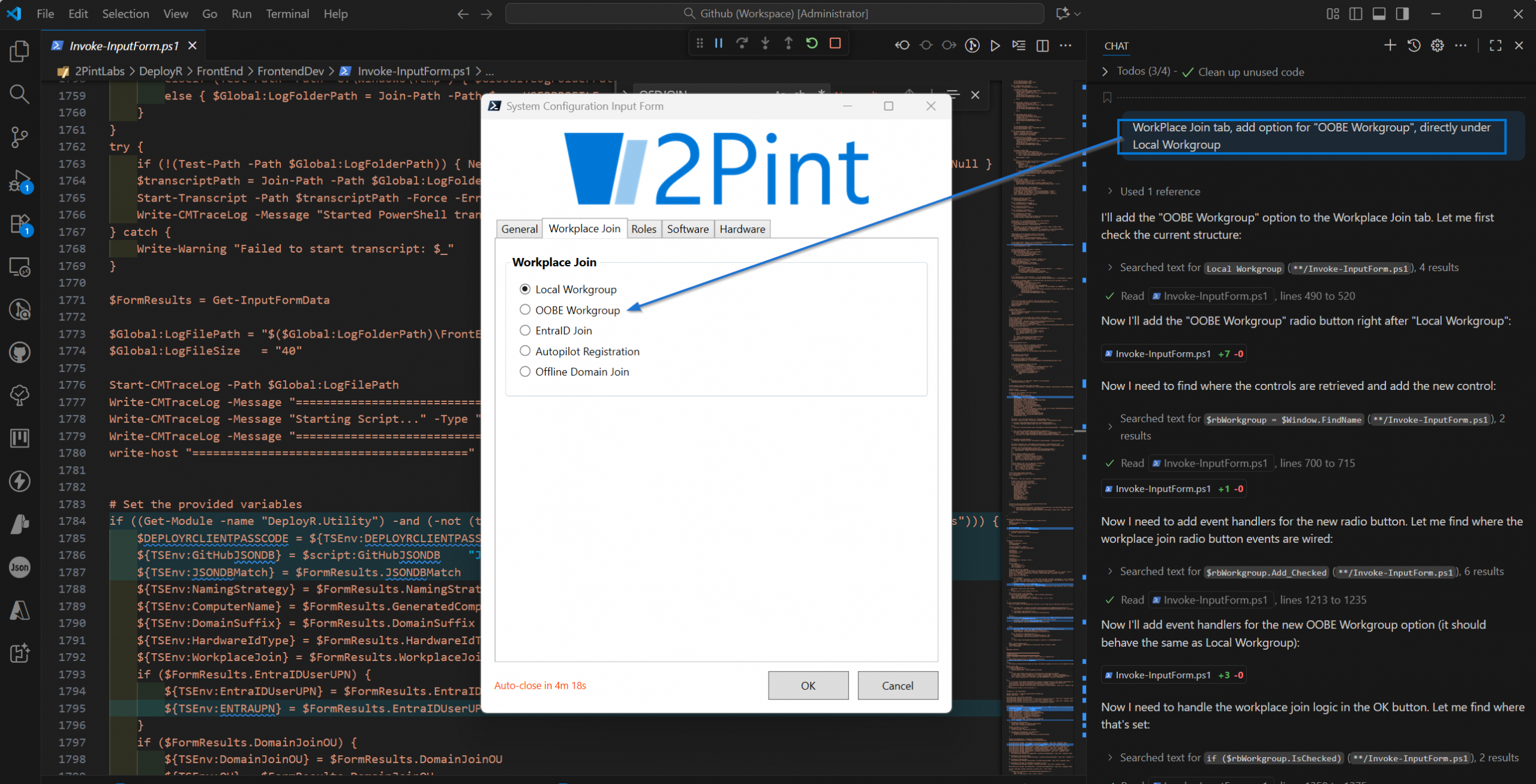
So here is a pro-tip. I created 90% with VSCode & GitHub Copilot, if you copy those files into your own Repo, and use Copilot in VSCode, you can ask it to modify the forms, add / remove, etc. This is one of the primary reasons I wanted it all in PowerShell, and not hidden behind an EXE. I want to allow people to easily modify it to their own needs. If you have questions on how it works, you can ask the Agent in VSCode!
Example, in my Dev Frontend, I just asked to have another option added for “OOBE Workgroup”, and boom, it’s done:
So steal with pride, just drop me a note if you found this helpful!
GARYTOWN.COM