[Works in Enterprise and Community]
You’ve got DeployR and you’ve got Dell devices, and you want to have all of the drivers updated before OSD is complete so you thought you’d have your task sequence run Dell Command Update. Good idea, let me show you how I did that for DeployR. I went a bit extreme with how I did it, so that others could just import and use the work I’ve done.
I turned Dell Command Update into a couple of different step definitions, so I can just add them directly into my task sequence and check some boxes, no need for scripting (for you)
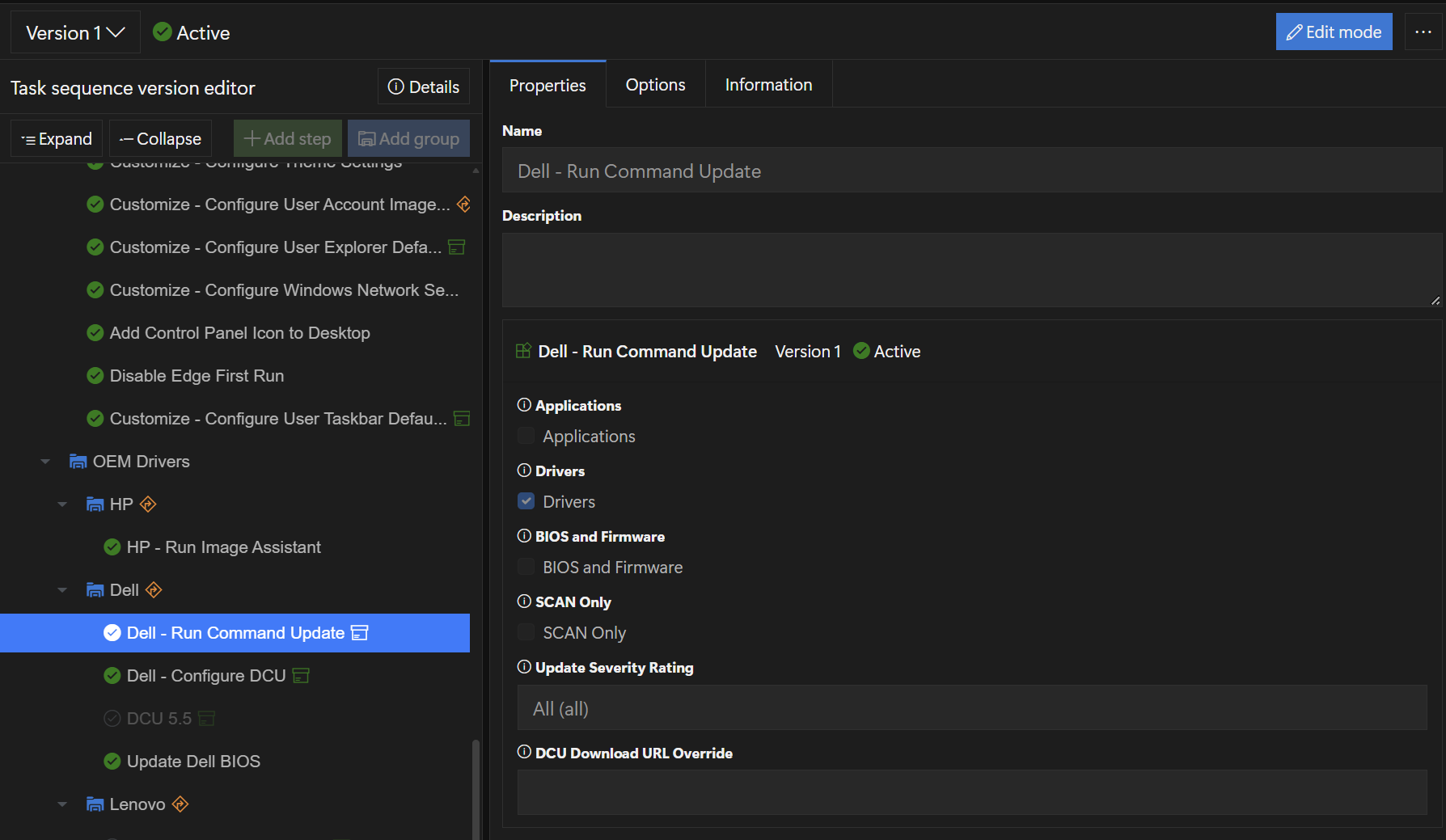
Adding this step into your task sequence allows you to set some variables to control the behavior of DCU. I typically only update Drivers, so most of my testing has been with that. I have not added support for updating BIOS via DCU when a password is required… I use a separate script for that.
- Variables:
- [Categories] Applications | Drivers | BIOS & Firmware
- [Action] Scan Only (basically a “what-if” that logs the updates it would have done
- Update Severity Rating (which will filter out available updates)
- DCU Download URL Override
Let me go into the DCU Download URL Override a just a bit. Standard behavior, when the step runs, the script will reach out to Dell, request the catalog for the specific model the task sequence is running on, then look though the catalog for the latest DCU available. It’s not always what you’d expect, as my testing today has been installing 5.7.1, but I know 5.7.2 was released a while ago. So if you determine you want to standardize on a specific version, then you can put the full download path to the installer, and it will use that instead of the dynamtically generated URL.
On the backend, these variables are feed into a script that runs during the Task Sequence. DellCommandUpdate.ps1
Script Process:
- Grab variables from task sequence that were set
- Download and Install Dell Command Update
- Log generated
- Set Dell Command Update to work in OOBE
- Restart Dell Command Update Server to enable OOBE Setting
- Invoke Dell Command Update with the task sequence parameters
- Log generated
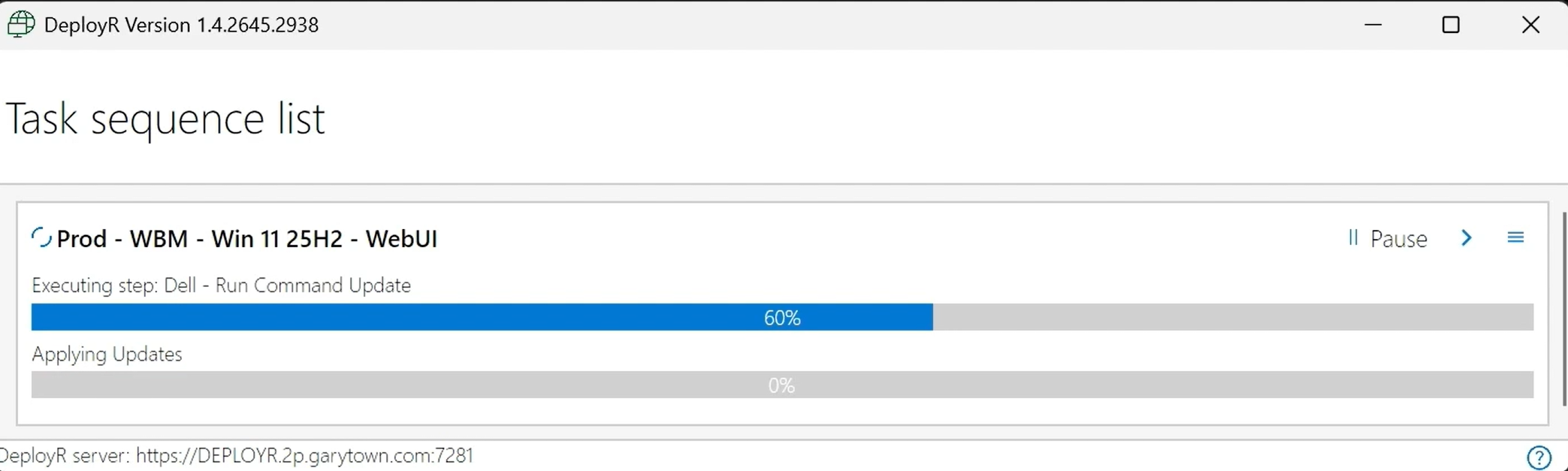
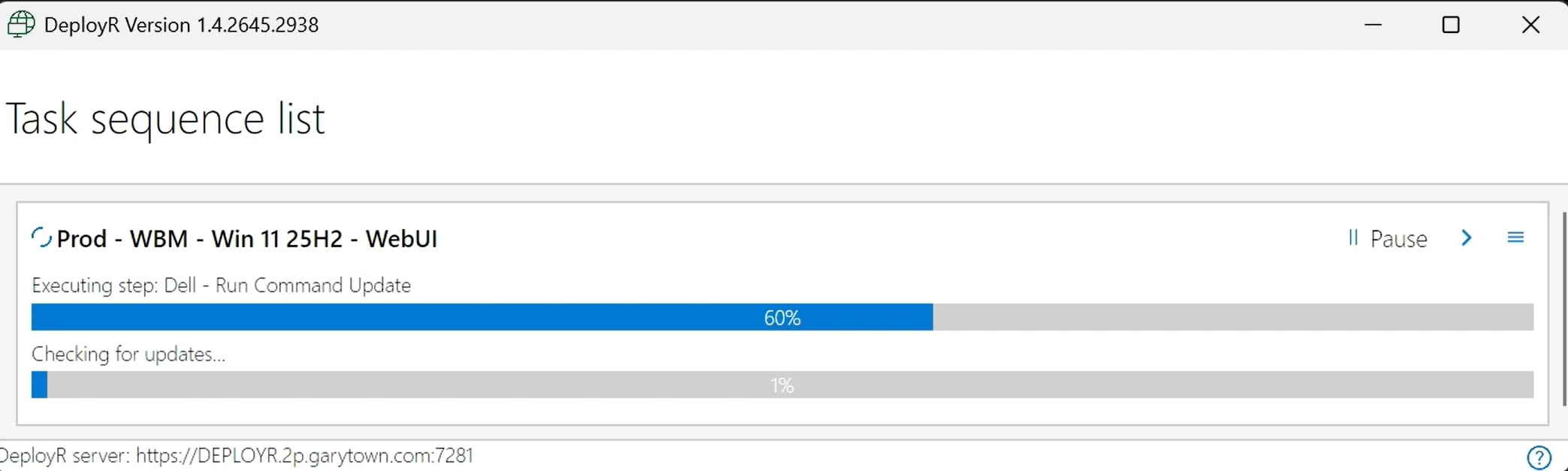
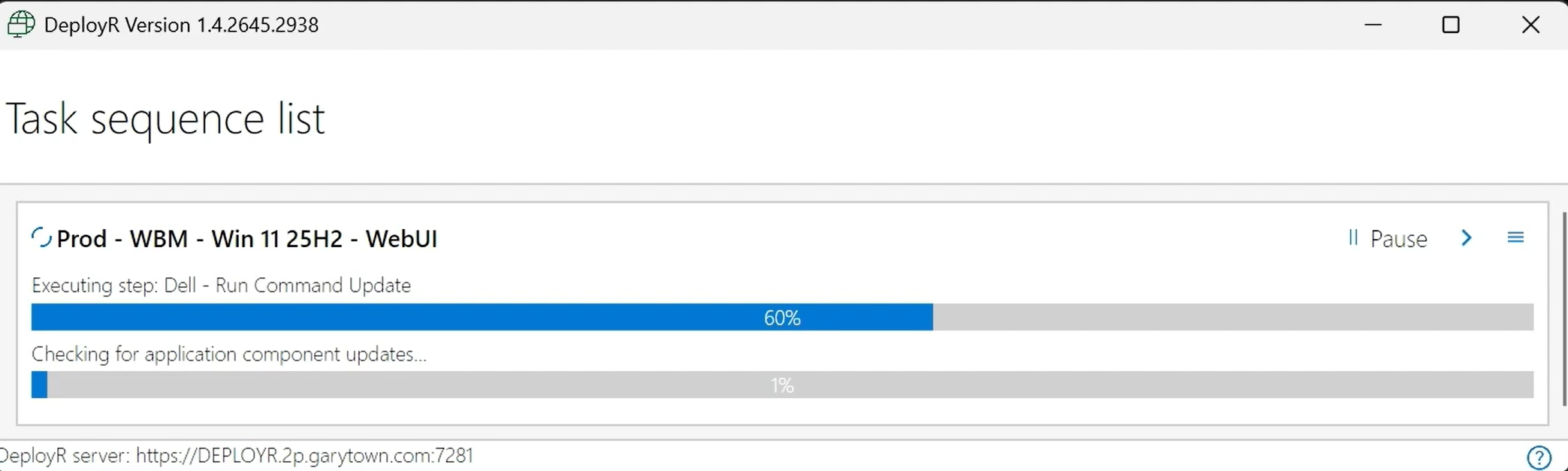
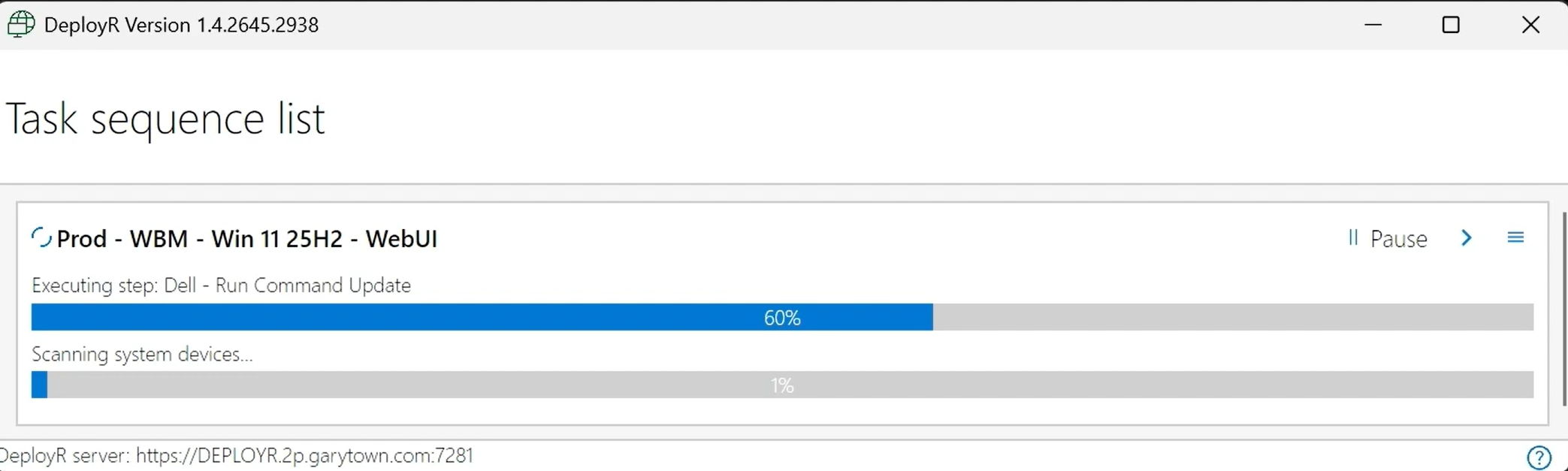
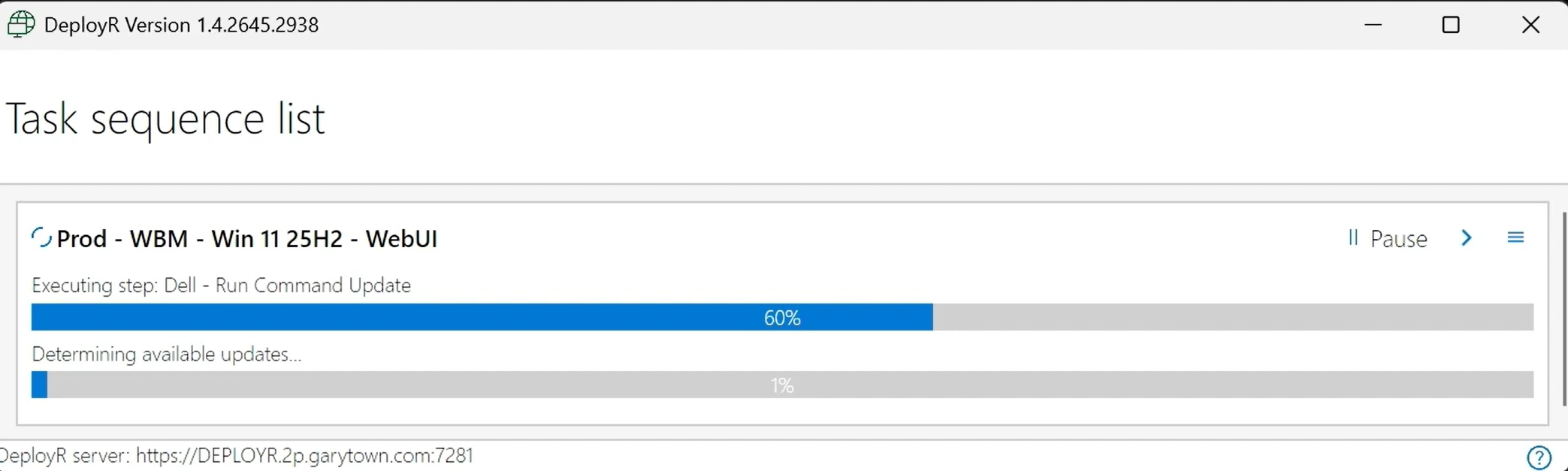
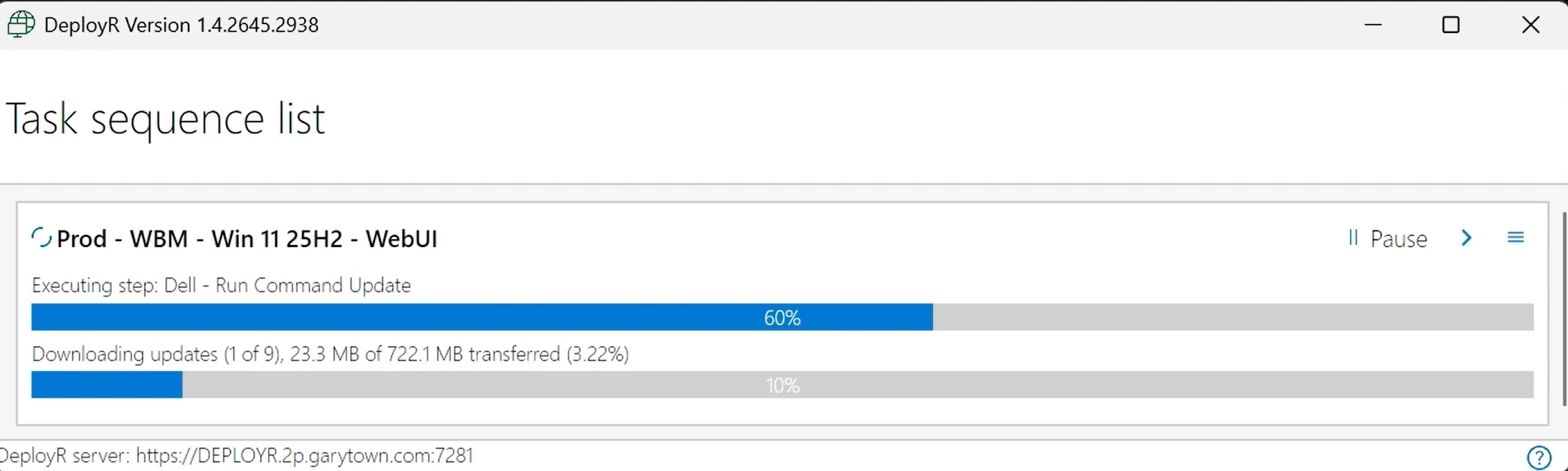
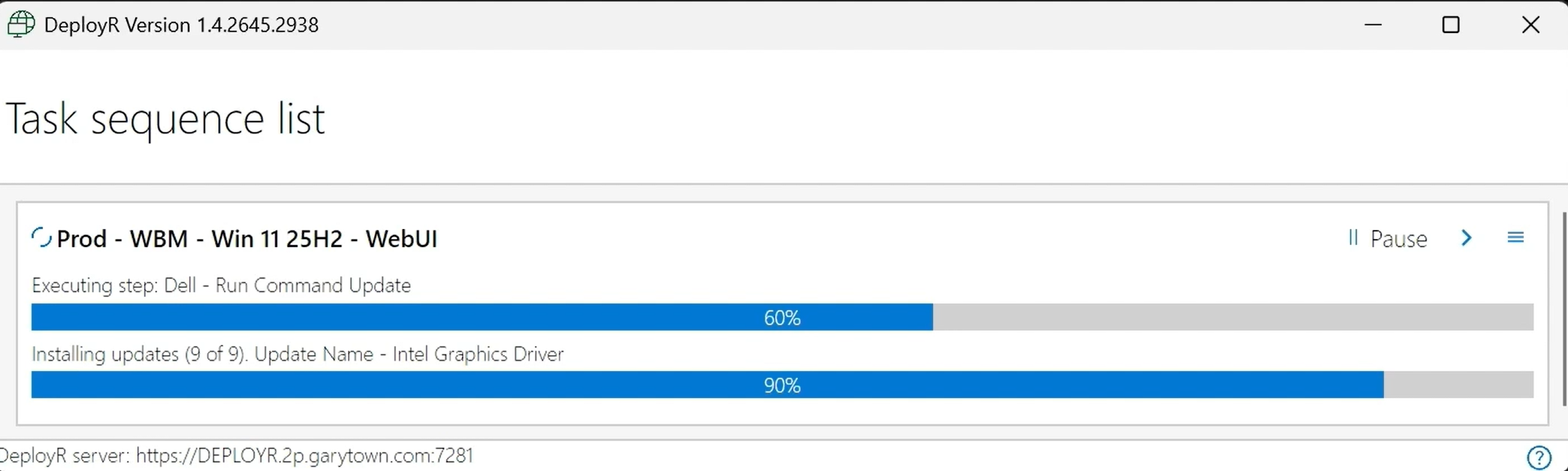
- Show feedback in the TS Progress UI
Note: If there is an Intel Management Controller Installer, it will crash the system if run via DCU and cause system to restart, I used to have a work around for that, however DeployR will automatically pick back up where it left off when unexpected reboots happen, so I no longer account for that.
Running in the Task Sequence
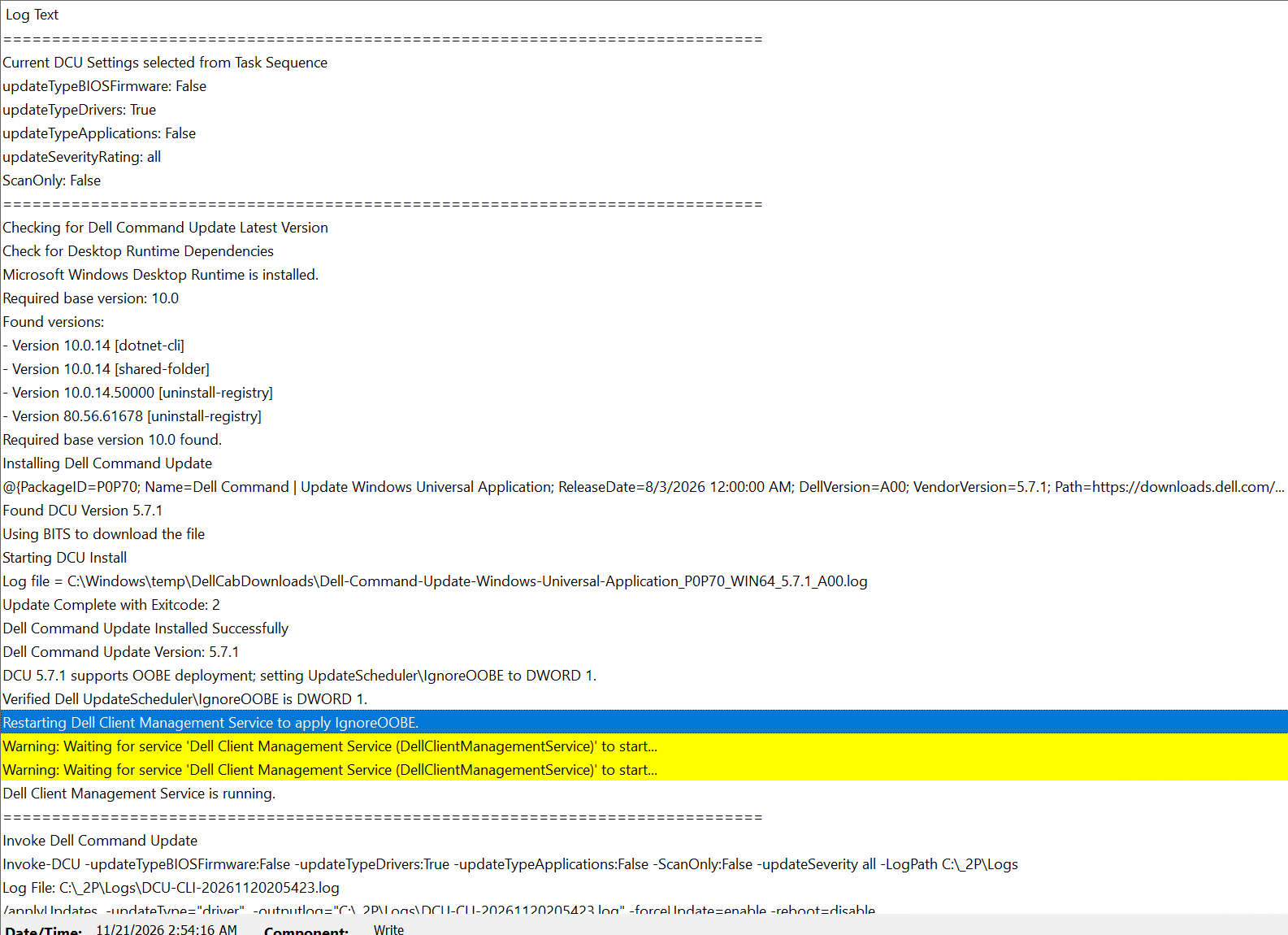
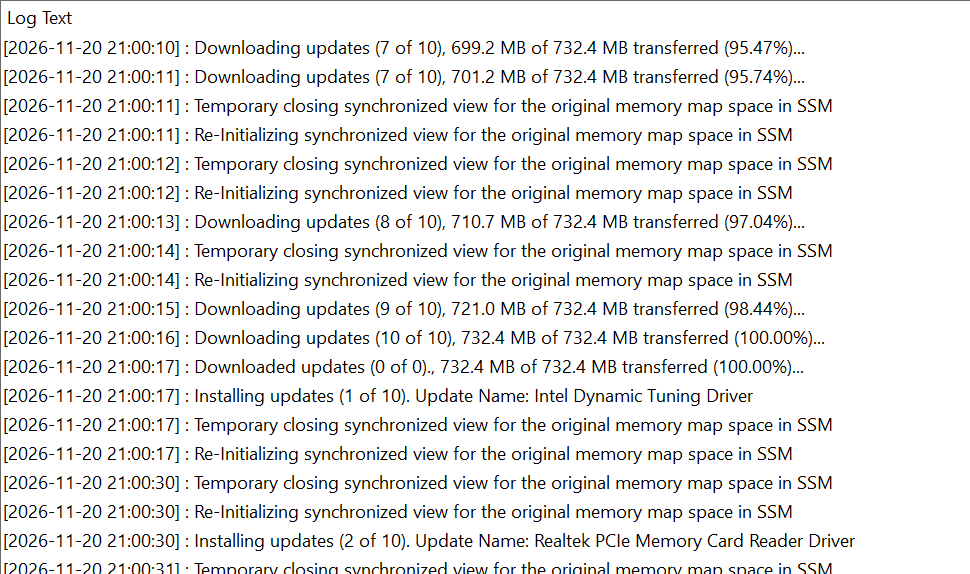
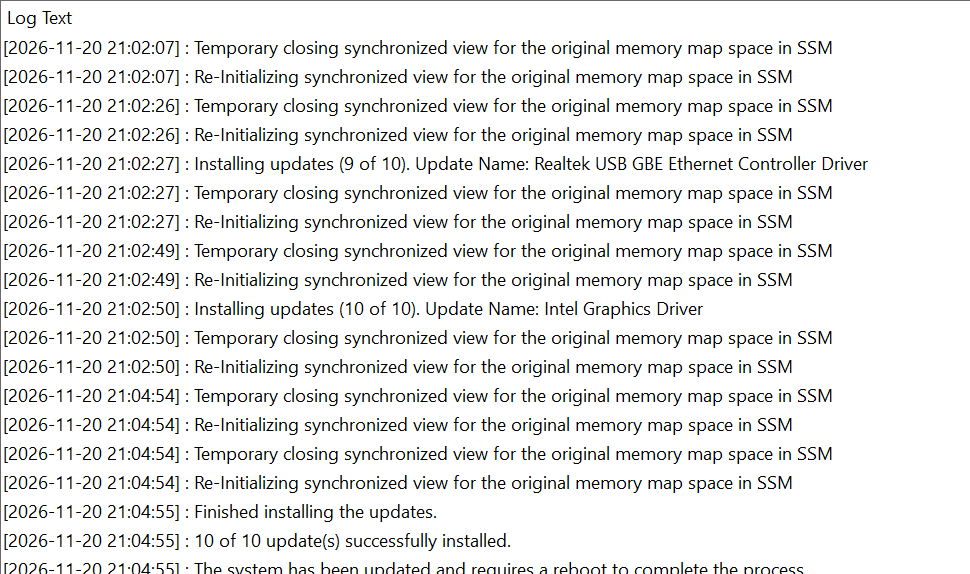
From the Log we see the variables from the Task Sequence at the start, then it checking for the .NET runtime pre-req, which DeployR has already installed, then it installs Dell Command Update then triggers it.
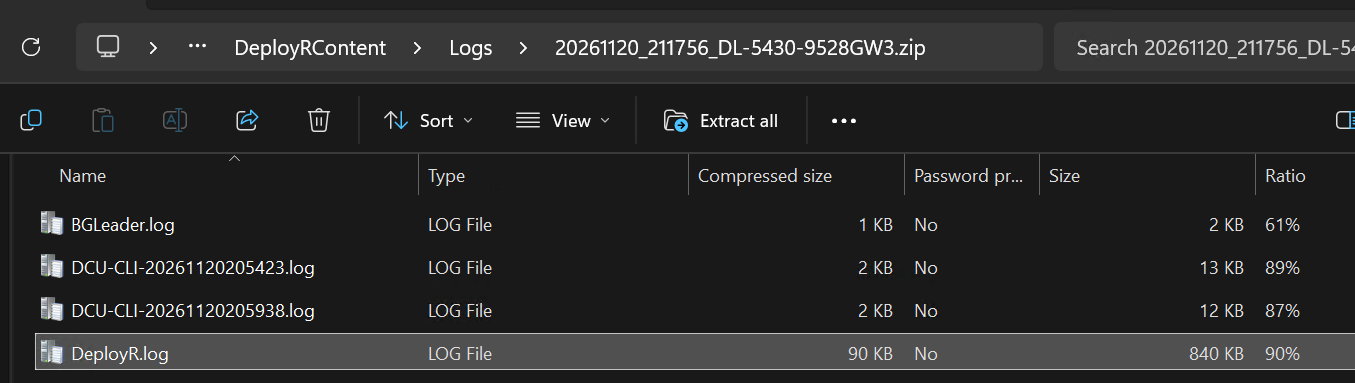
On the servers, the logs will all be gathered so you can check them out, you’ll see DCU ran twice, which was because it crashed during the Intel Management Controller update.
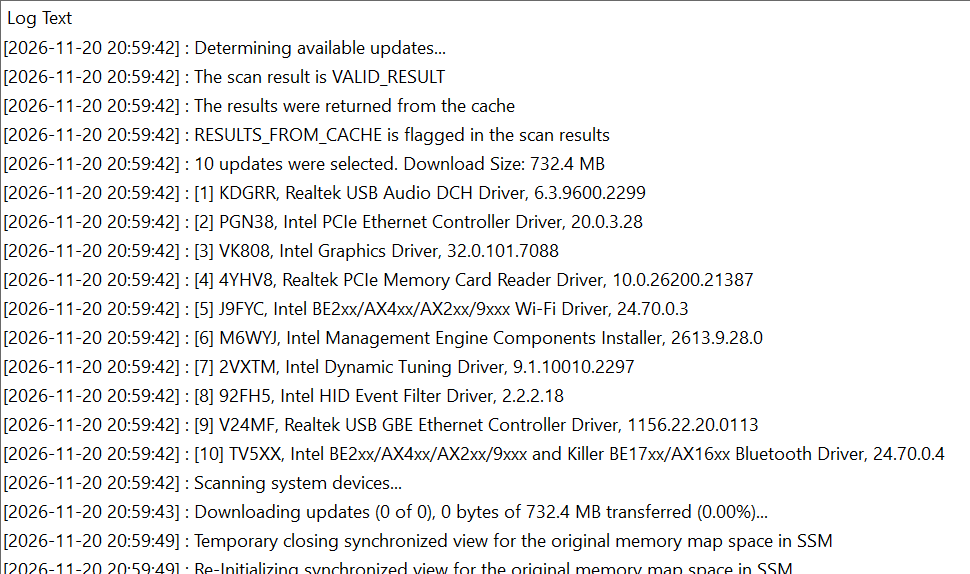
So, looking at the log… it’s got all the stuff you’d expect….
The UI
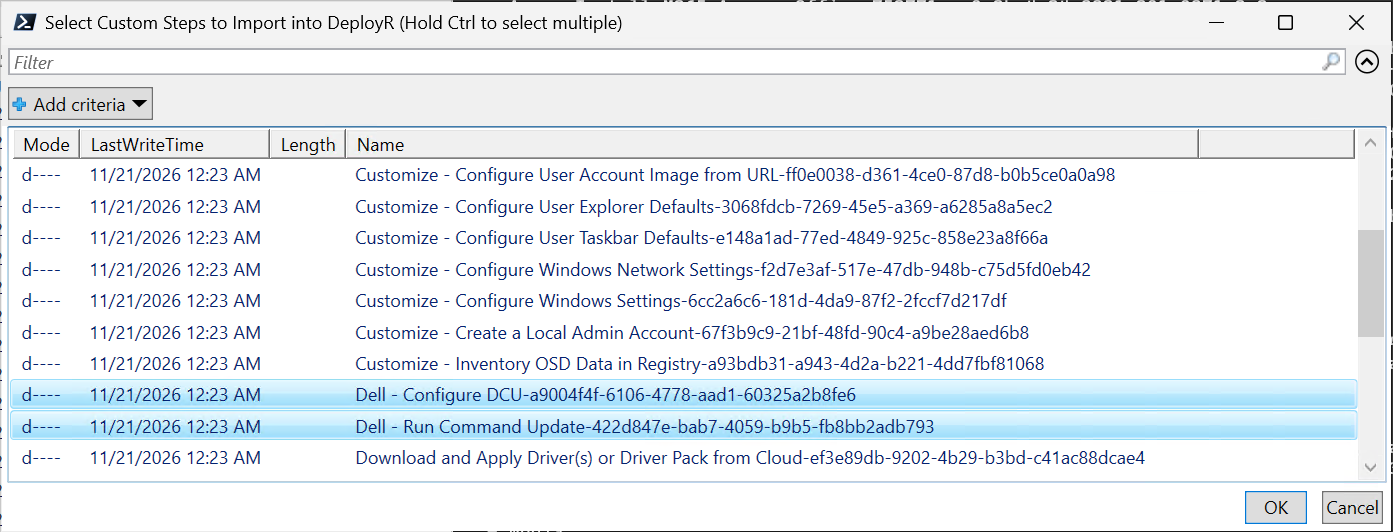
To import, see this post: DeployR – Importing Custom Step Definitions
- Run the script
- Choose the steps
- Click OK
- It will then import the step definitions and scripts into DeployR.
Please reach out on Discord / Reddit if you have questions or have feedback.
GARYTOWN.COM