This post I’ll be going over the basics to create the Office 365 installer application to be used with DeployR OSD.
Couple of Notes, 1: If you’d like to do this pulling from internet, it’s a very similar process, you just skip downloading the Office content, and build the app the same way, your content item would just include setup.exe and the configuration file instead of the offline downloaded files.
Note 2: I’ve created a handy dandy step definition which has been documented here: Sample – M365 Office Installer | DeployR | Product Documentation
Get the Office Deployment Toolkit (ODT)
Download the Office Deployment Tool & Extract (This will provide the setup.exe & a few XML samples)
Create the Office Configuration XML file
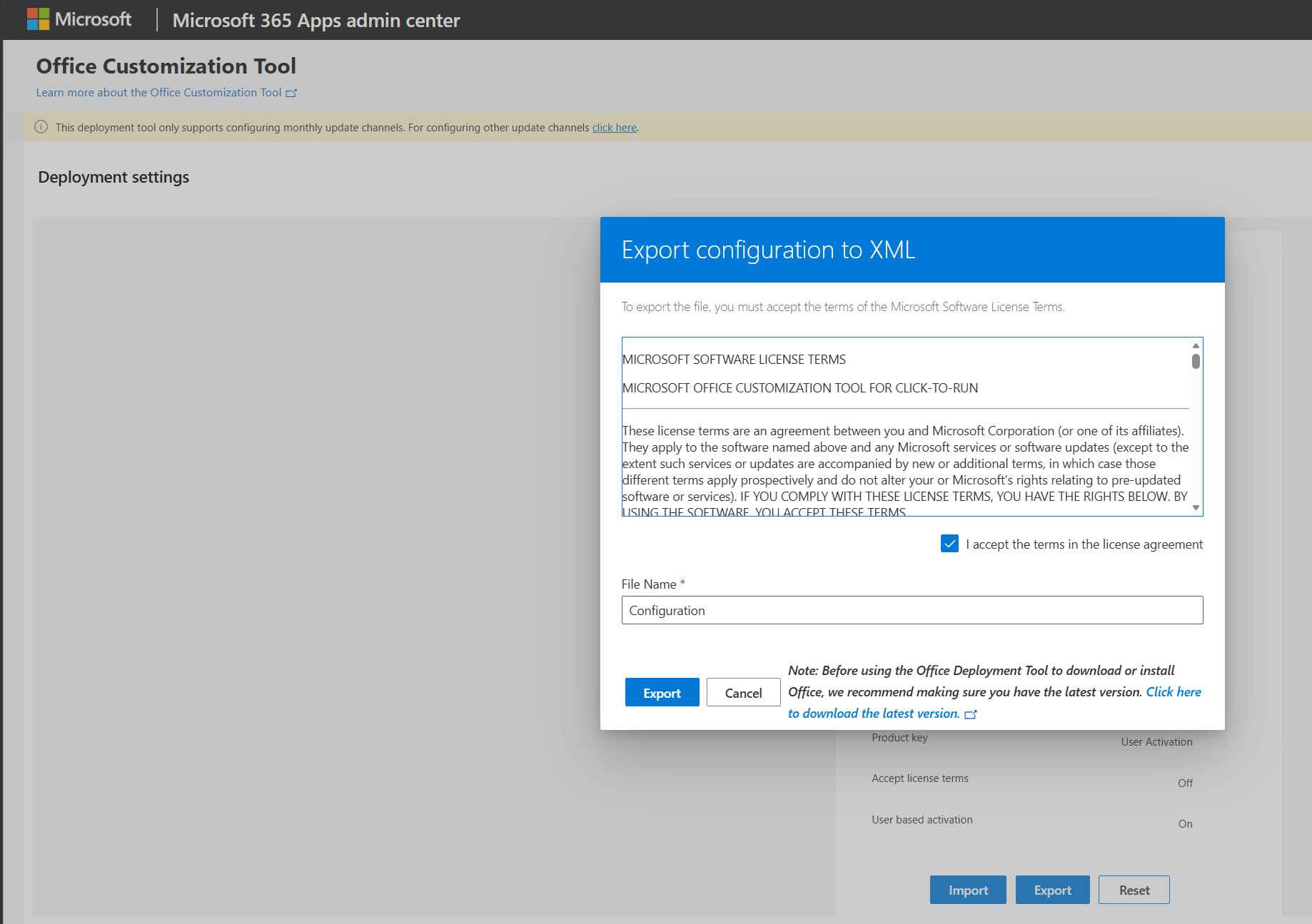
Go to https://config.office.com/ and create your XML file to fit your needs and download [Export] it.
Run Setup in Download mode
I extracted the ODT to a subfolder in my Downloads folder named ODT
setup.exe /download Configuration.xml [note if you’re using PowerShell instead of Command Prompt, you’ll add .\ in front of file names
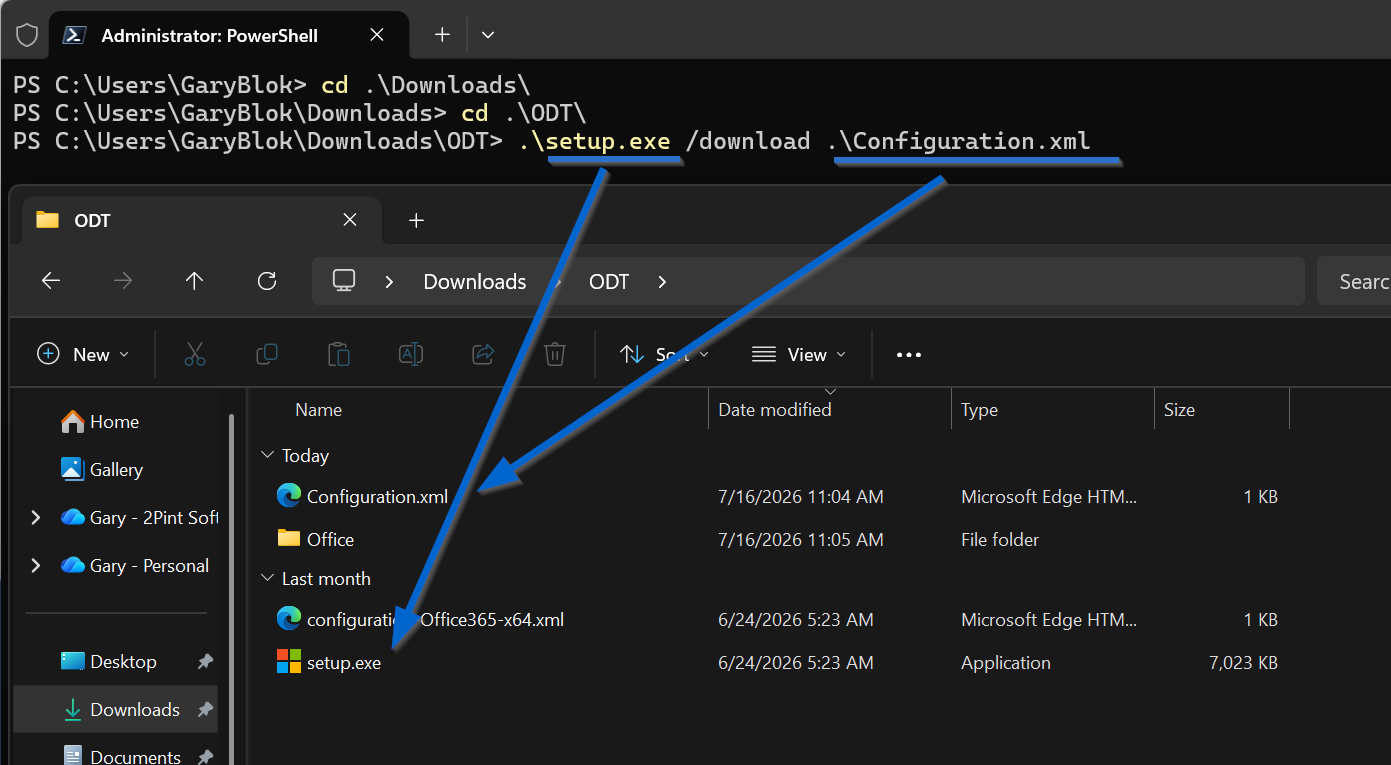
Setup.exe in this mode will generate a subfolder in the same path that Setup is being run named Office and download the required content to it.
Additional Details on Learn: Deploy Microsoft 365 Apps from a local source – Microsoft 365 Apps | Microsoft Learn
Manual Test
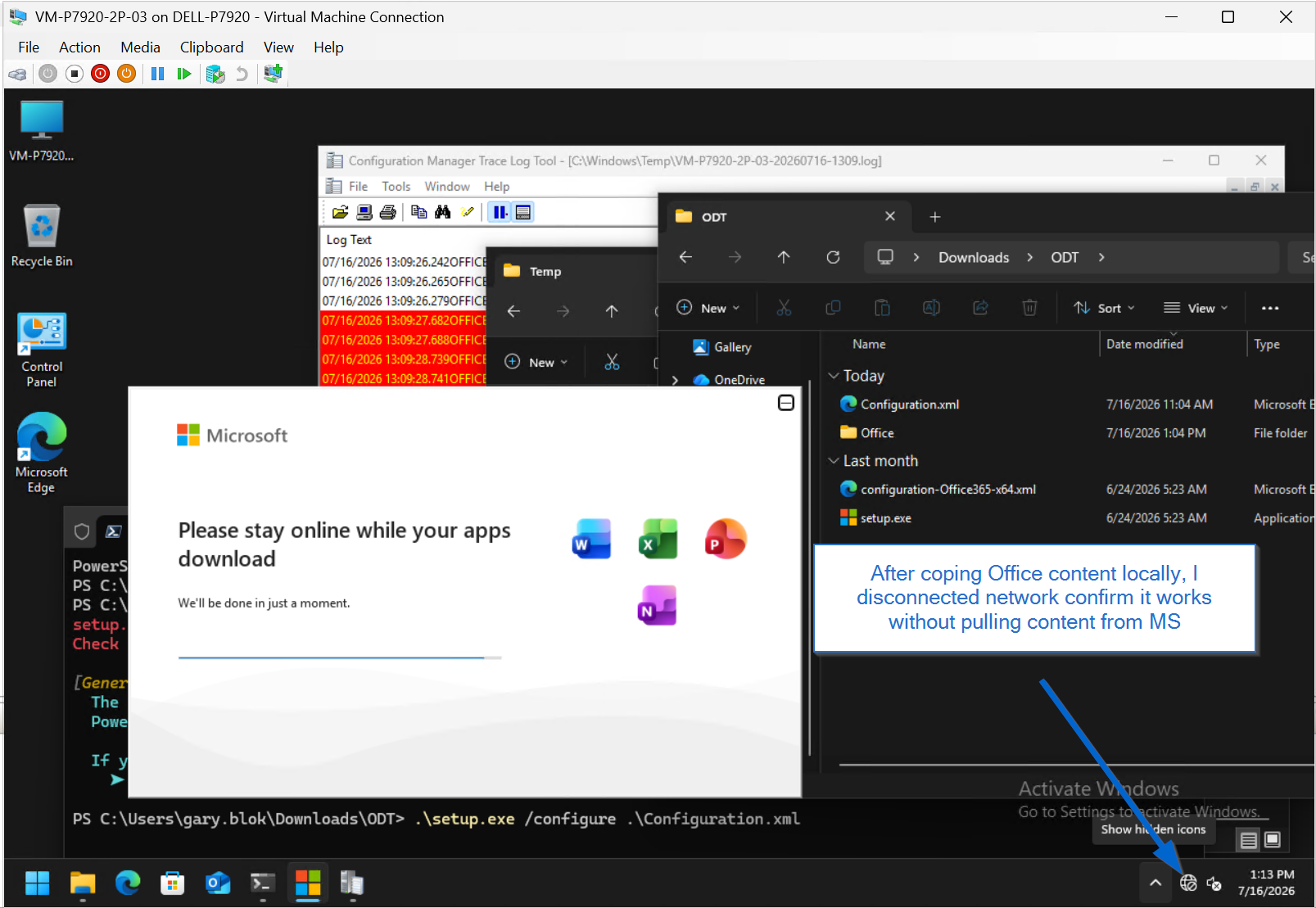
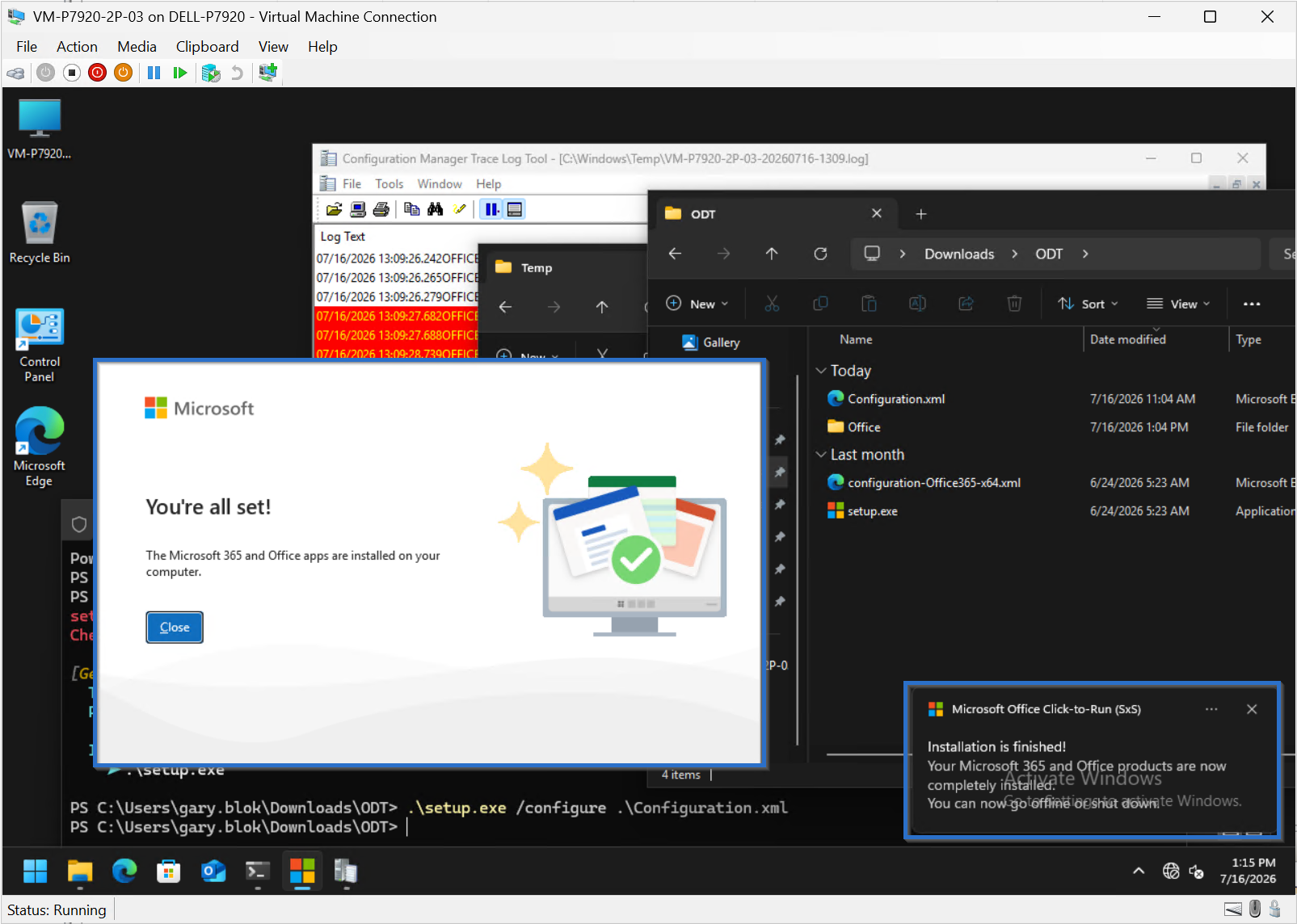
On my test machine, I copied the ODT folder over that had the setup.exe, configuration.xml and Office download folder with the offline installation files. I then disconnected the VM from the network and triggered the installation. It says “Please say online while your apps download” which seems odd, but that’s Microsoft for ya. It did install as expected:
Create DeployR App
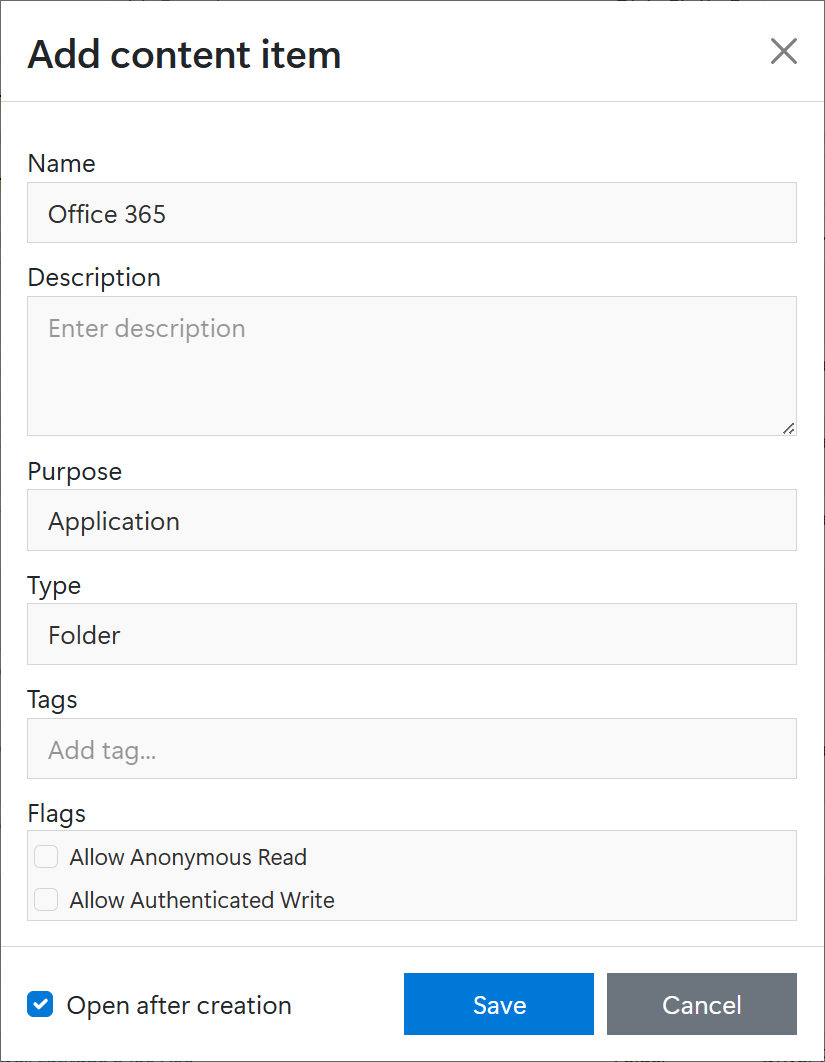
In the Content Items area, create a new Content Item, name it Office 365 or whatever you’d like, set the purpose to Application, and Type to Folder, check the box to open after and click Save.
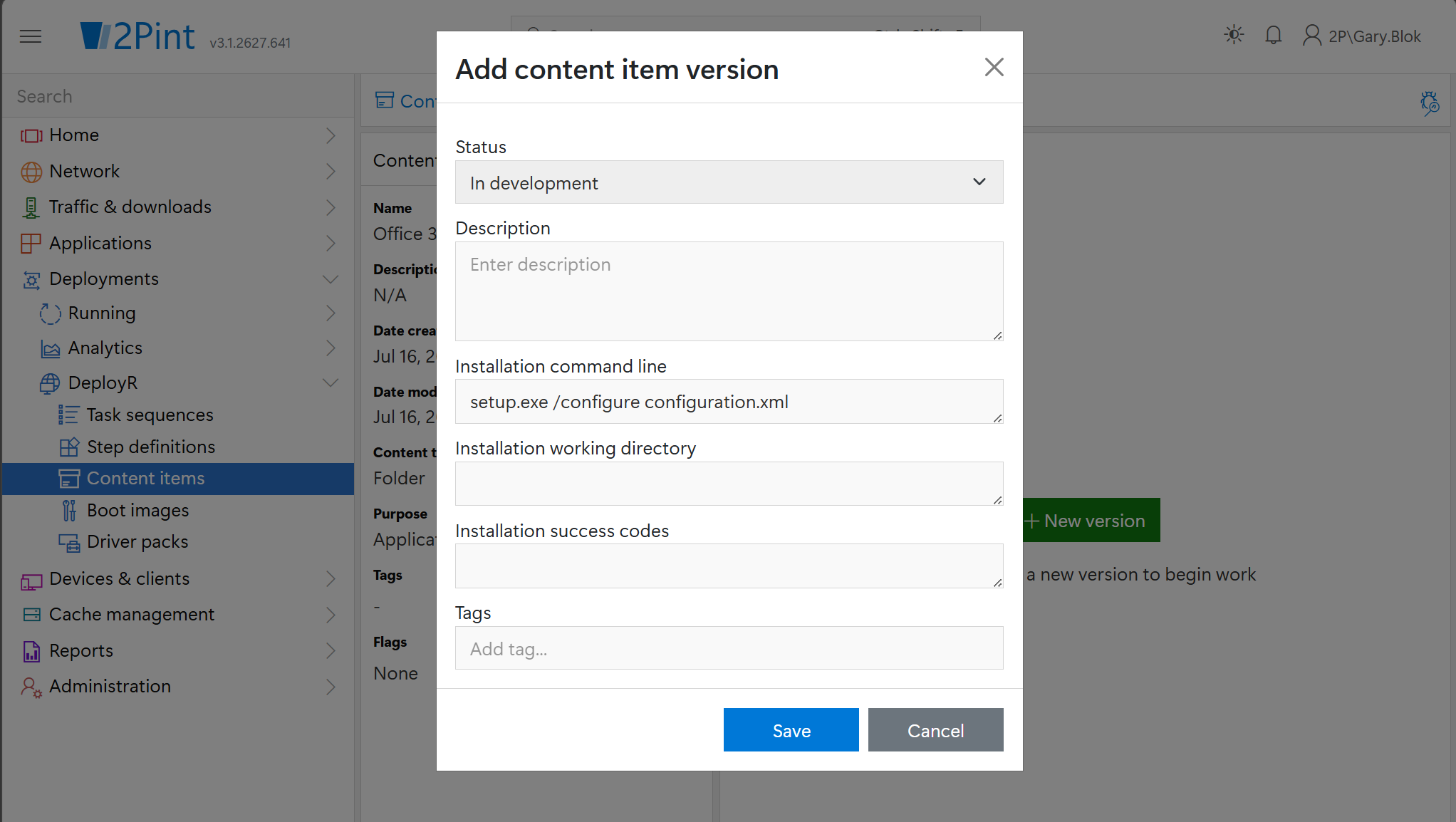
Create New Version, set your installation command line:
setup.exe /configure configuration.xml
Modify if you need to match the name of your xml file.
Then click Save
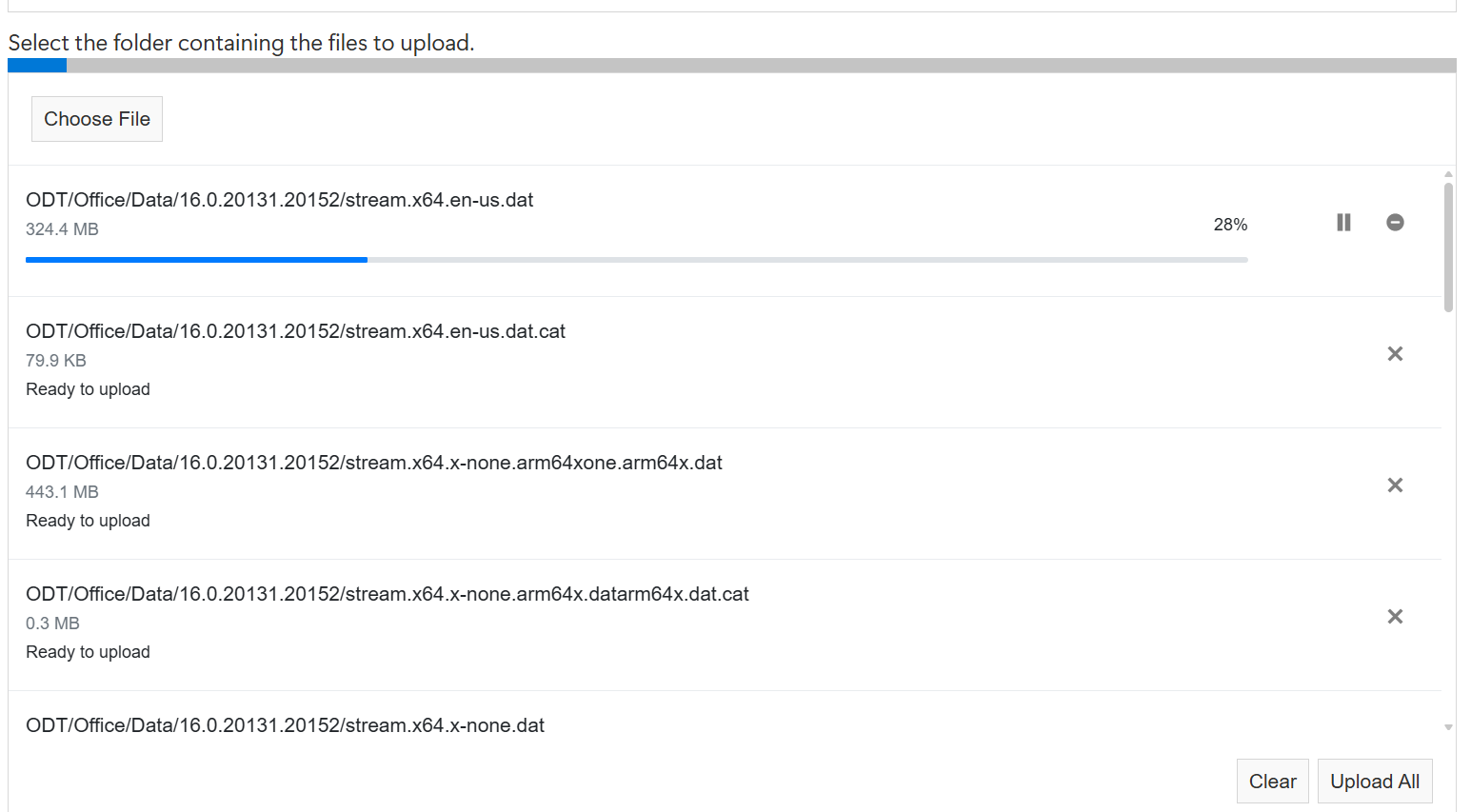
Click Choose File, then browse to where the content is and click Upload
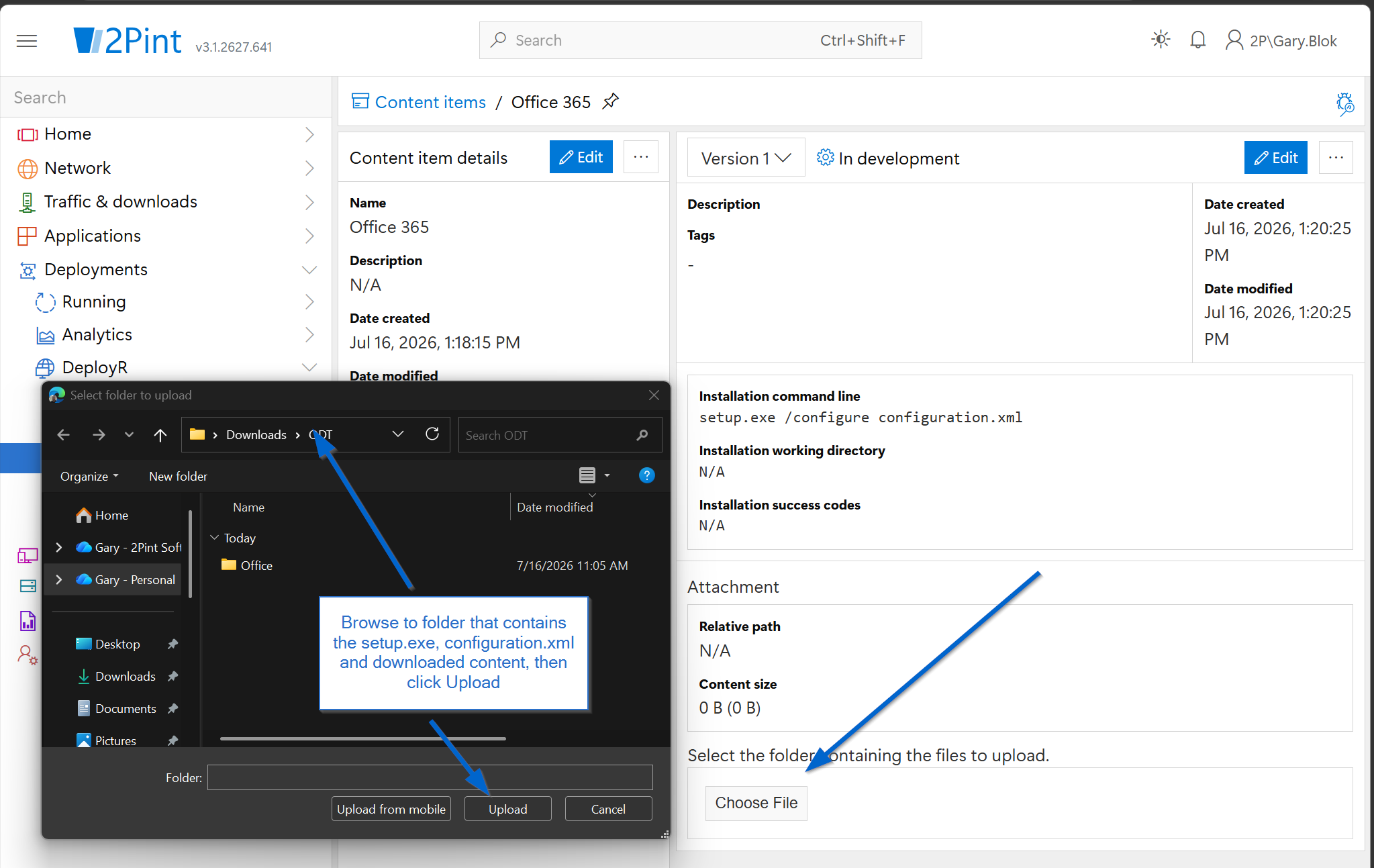
It will then process the files in that folder and ask if you want to upload them. Click “Upload”

You’ll then see a list of files to be uploaded, click “Upload All” and wait for it to upload.
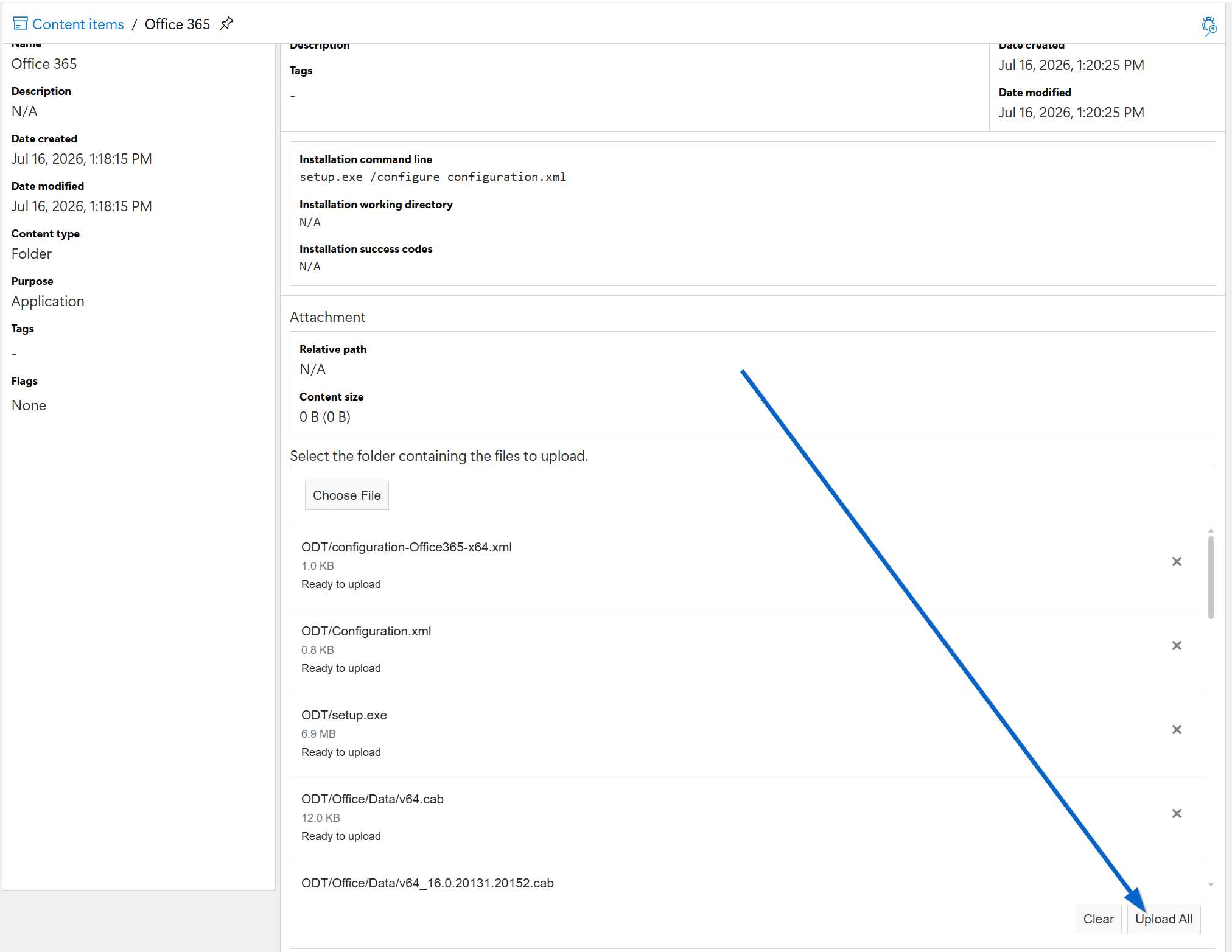
Sit back and enjoy your coffee while you wait for the upload:
Add App to Task Sequence
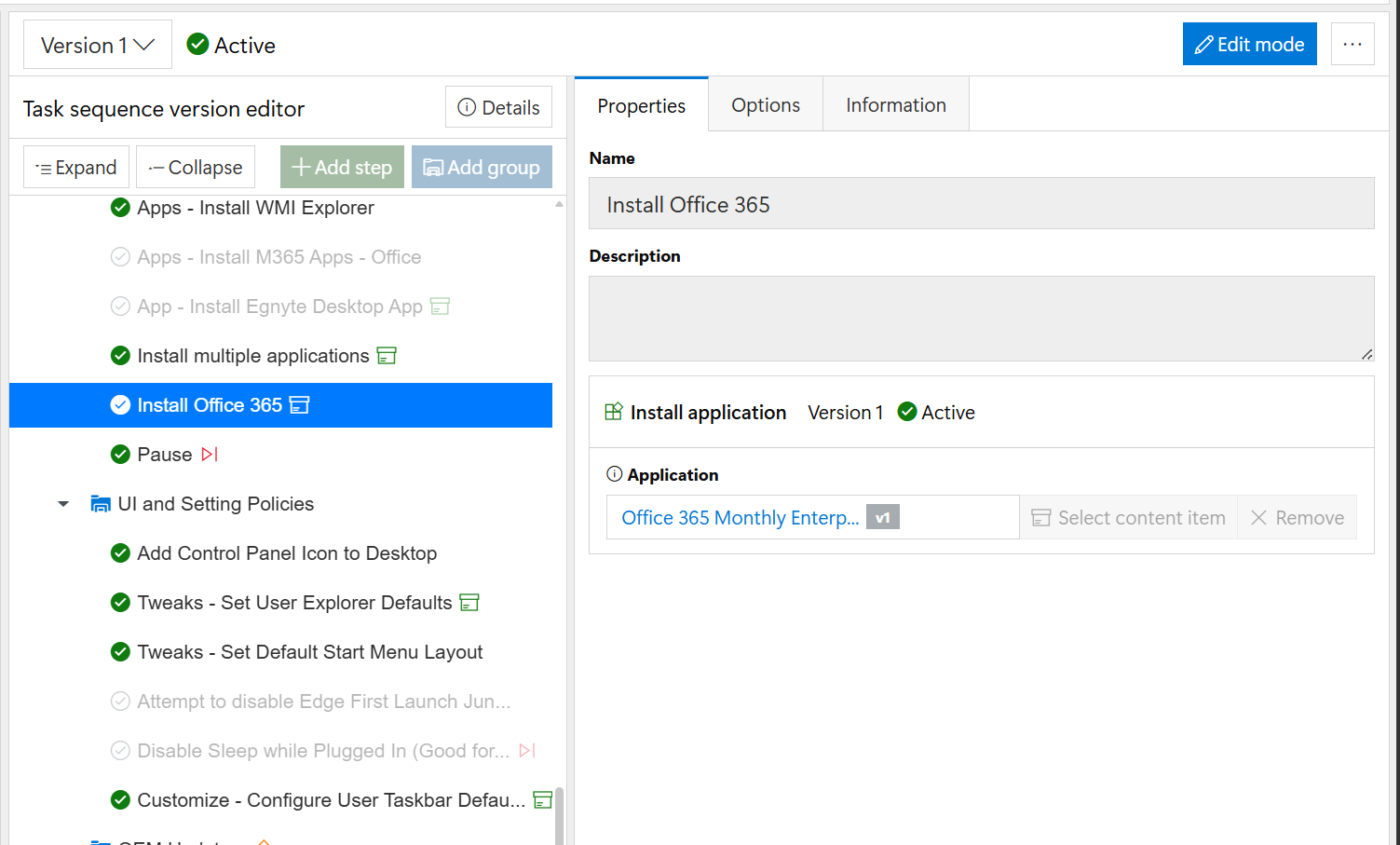
Pick your task sequence, add step “Install application”, then choose the Office App you just created:
Run Task Sequence with App on Test Machine
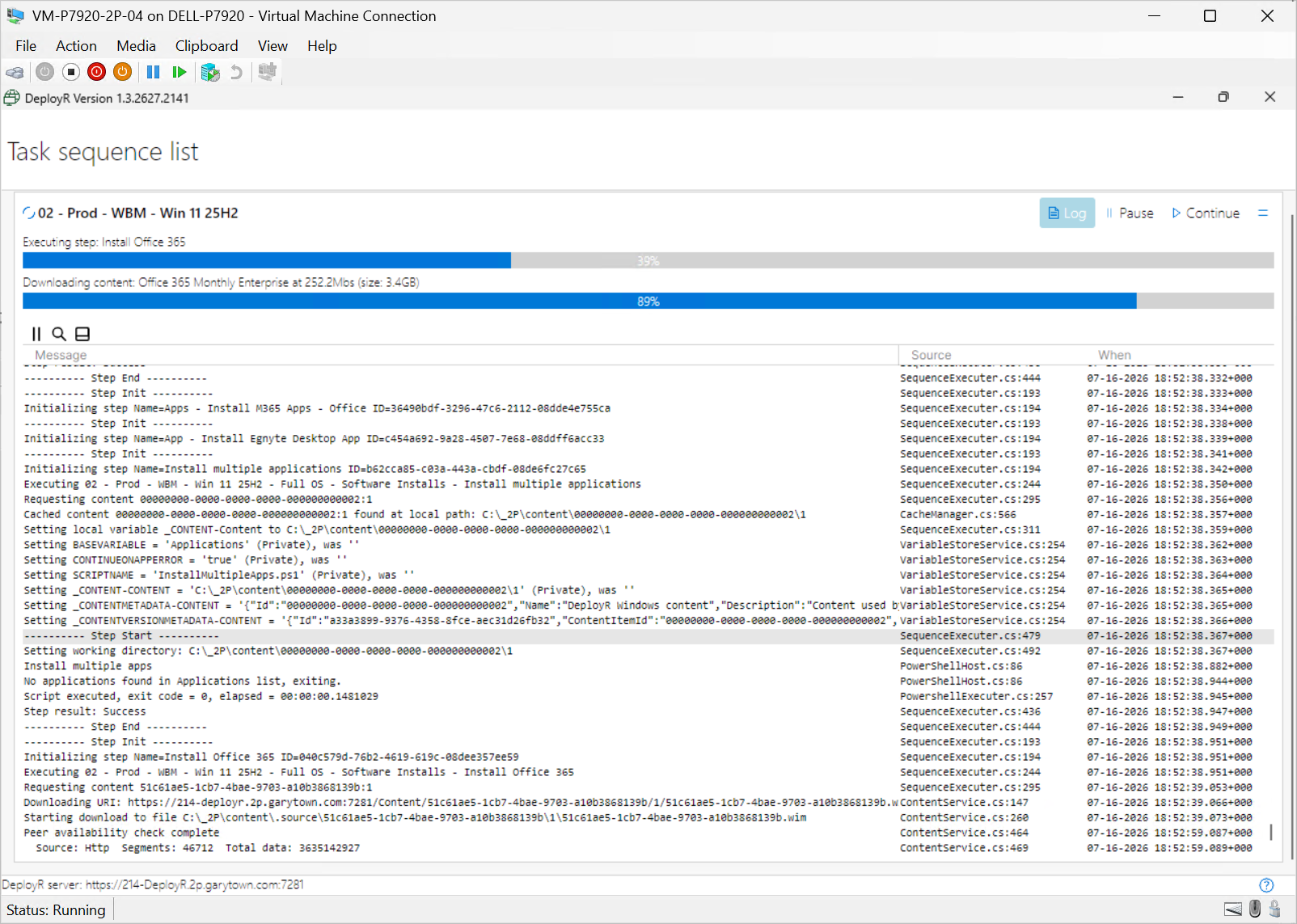
First we see it download the Content Item locally:
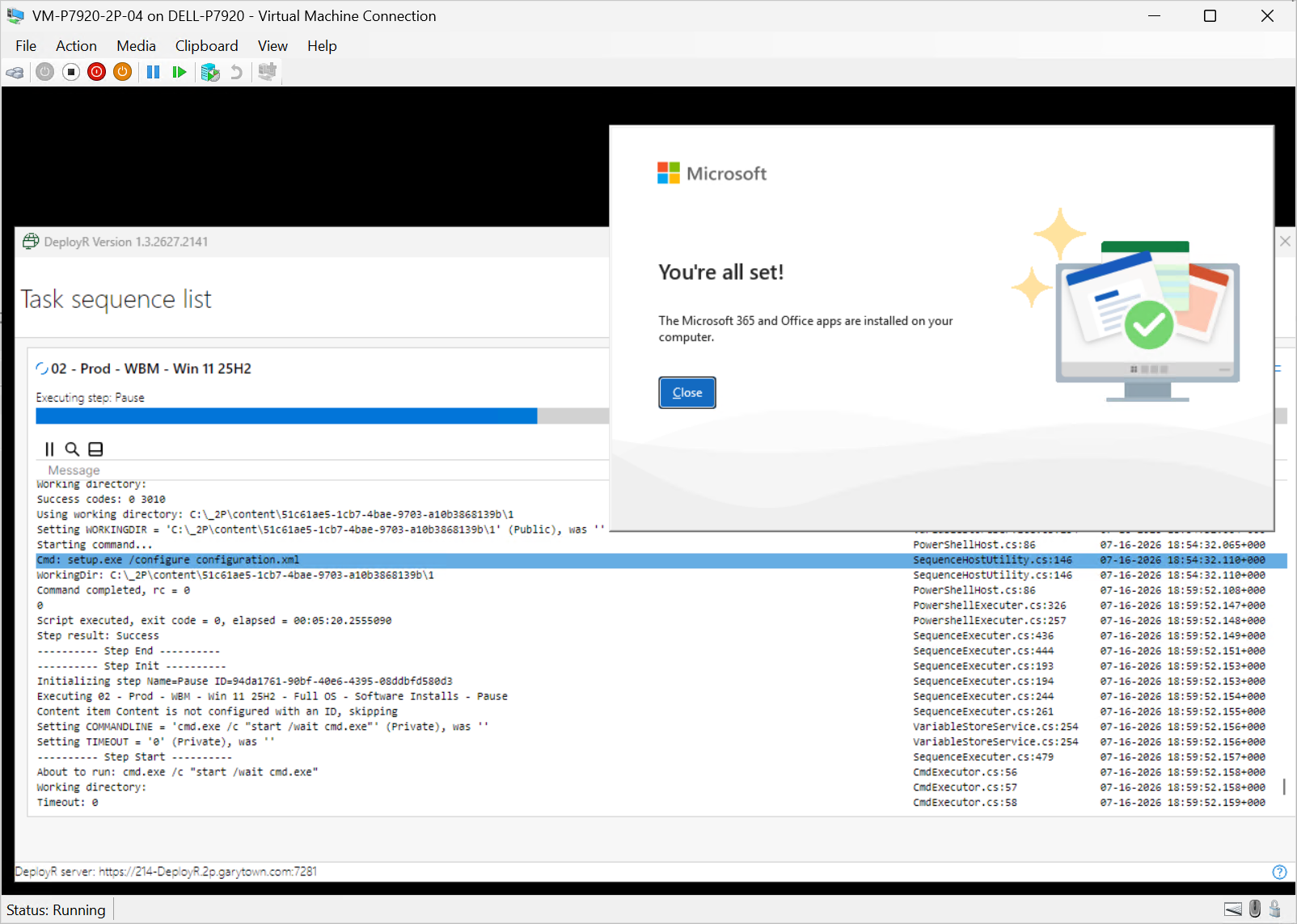
Then the command line kicks off:
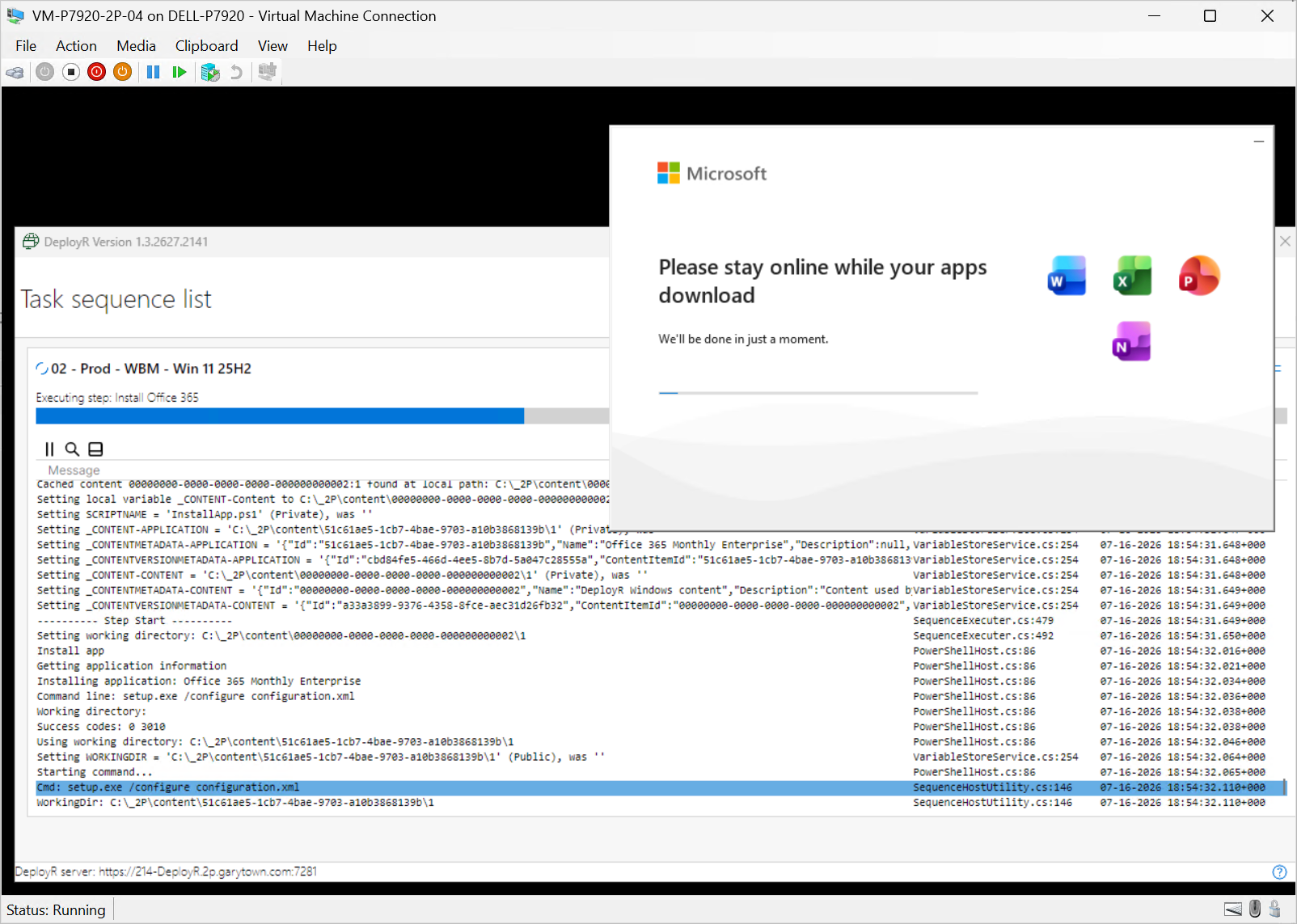
When complete, it will leave this up on the screen, but the TS will continue. You can change your configuration.xml file to be a silent installation if you like. Personally, I like to see the progress bar.
For more DeployR Content, see the official docs, Reddit or Discord.
https://documentation.2pintsoftware.com/
https://www.youtube.com/@2PintSoftware
https://www.reddit.com/r/DeployR/
https://discord.com/invite/winadmins