You can find the basics here: Scripting for DeployR Server | DeployR | Product Documentation
In this post I’ll be going a bit deeper into a Script I wrote to help backup specific things. I created it so I can transfer specific things from one environment to another without having to backup everything. Pro Tip, if you want to do this, I’d recommend using the steps “Apply Cloud OS and Apply Cloud Drivers” so that you don’t have to backup your driver packs and OS Images, which is the bulk of the backups.
The script will connect to your DeployR Server (recommend running directly on the server, I use VSCode on my server), prompt for what you want to backup, then go ahead and back it up. Update the variables to the locations you want the backups go to. ($BackupPath)
GitHub – Backup Script:
https://github.com/gwblok/2PintLabs/blob/main/DeployR/ServerSideScripts/Tool-Backup-DeployRContent.ps1
GitHub – Restore Script: https://github.com/gwblok/2PintLabs/blob/main/DeployR/ServerSideScripts/Tool-Restore-DeployRContent.ps1
The Backup will build a very specific folder structure for the backup, which will allow the Restore script to work properly. If you do a backup on one server, copy the entire backup folder over to another DeployR server, you could then restore it pretty easily.
Running Backup Script
On my server, I’ve launched VSCode as admin, and I’m kicking off the script, it runs a little then launches a PWSH window asking for what content types do I want to backup, I’m going to do a single task sequence in this example, please note, if you’re looking to just do a full backup of all content items, that’s much easier and you could code that in just a few lines by looking at the docs, this is for a precision backup.
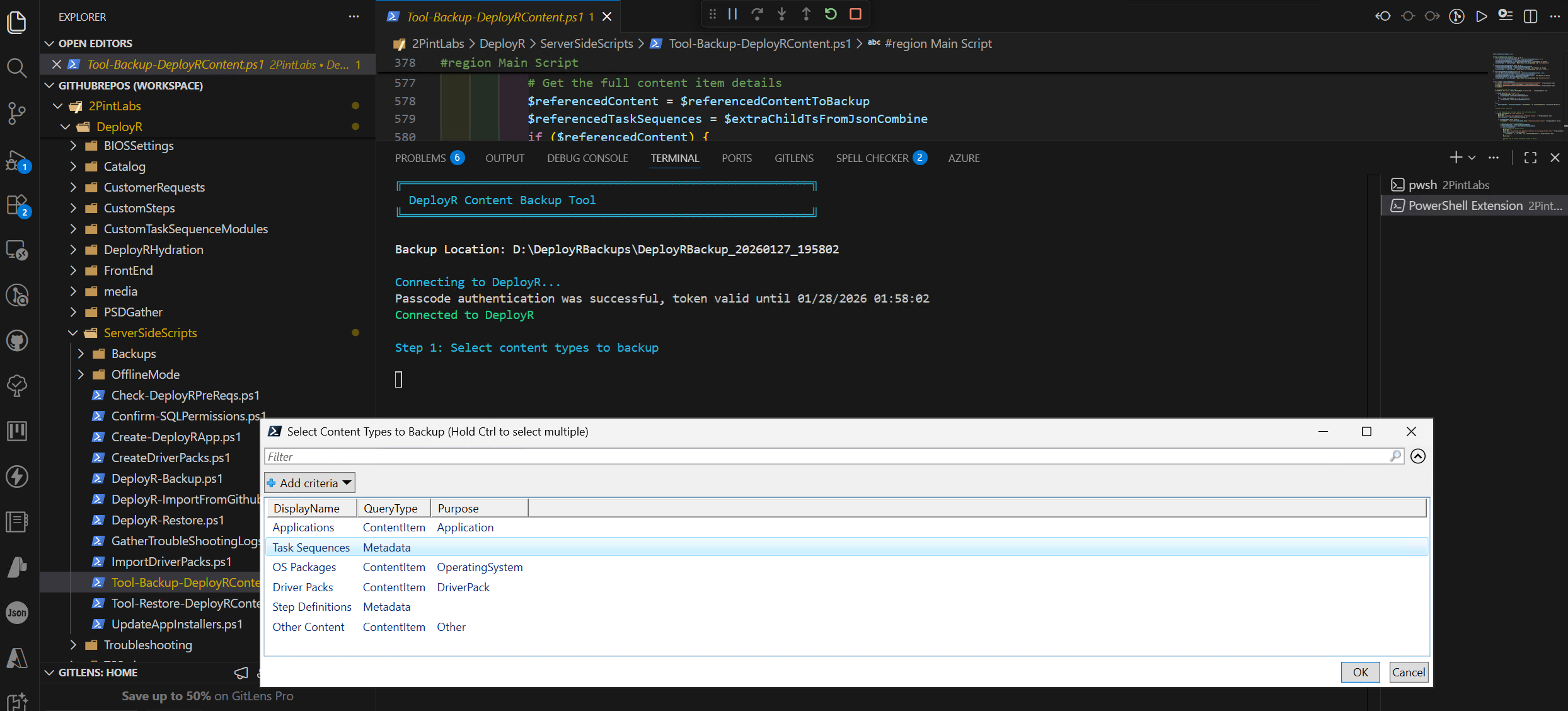
Once it knows the content type(s) you want to backup, it will ask for which ones:
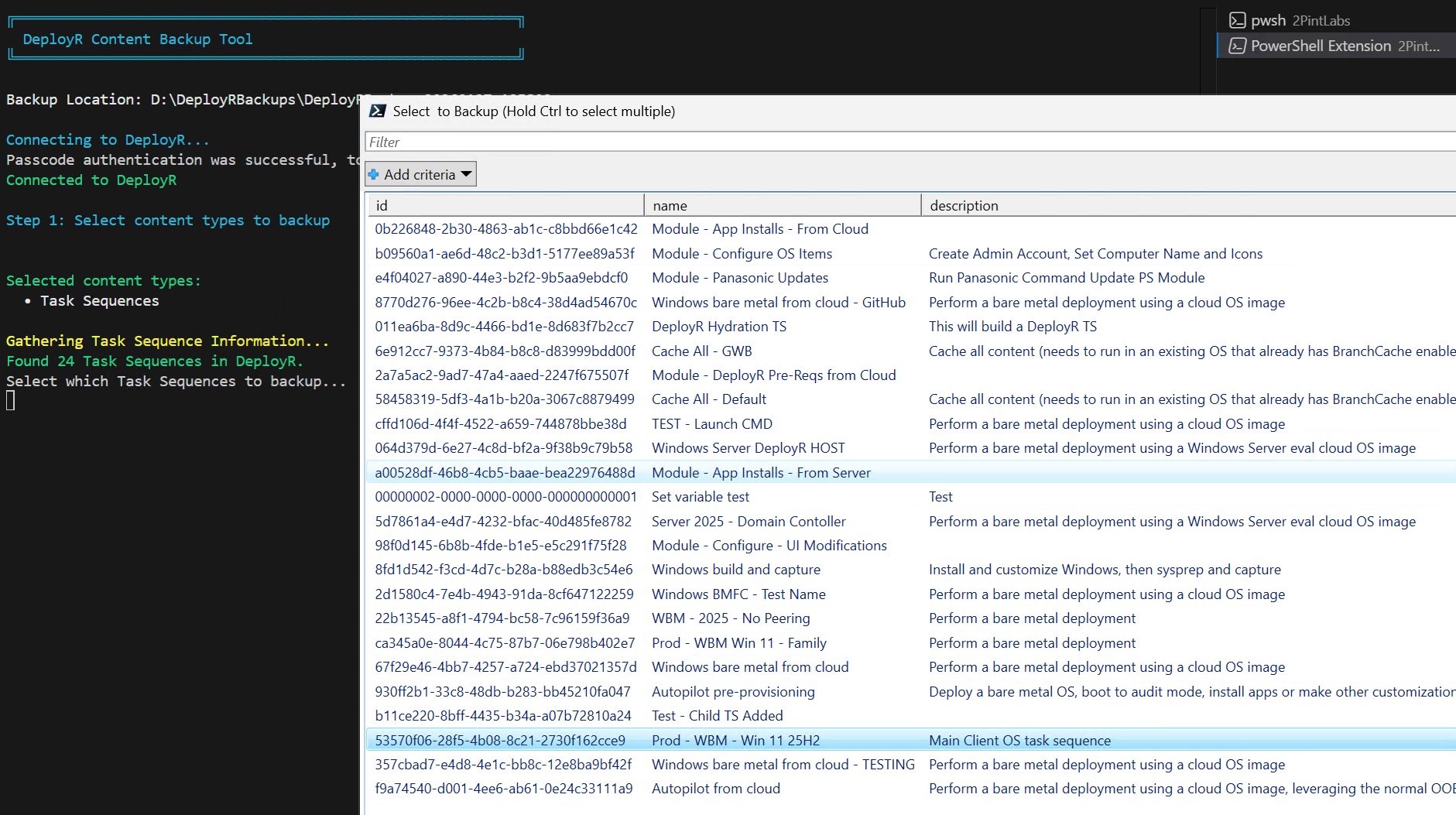
I then choose the task sequence and click OK. Now you sit back and watch it do it’s thing:
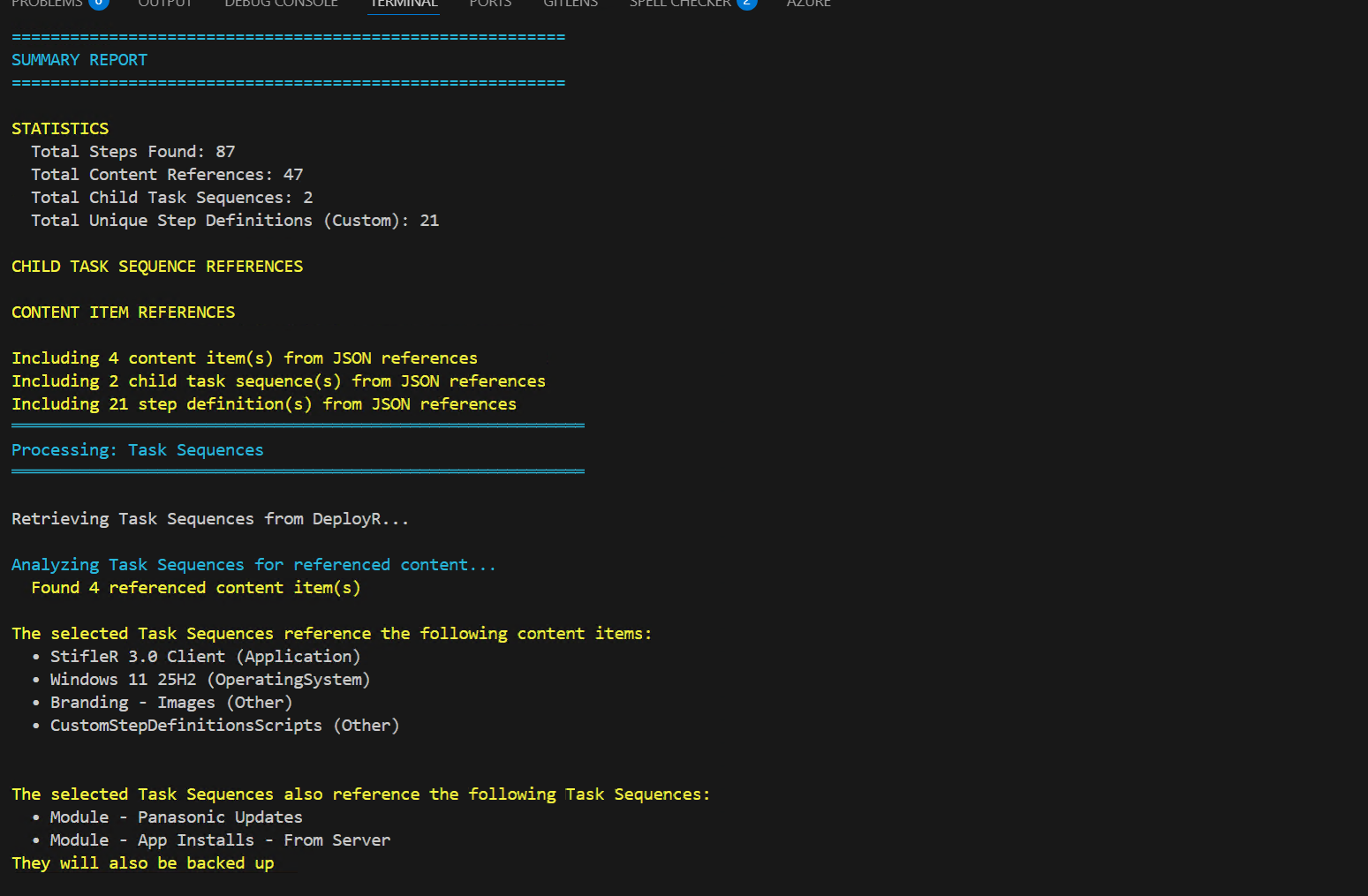
If you choose a task sequence, it reads the task sequence meta data, finds the referenced items and builds a list of the additional items you’d need to backup in order restore this task sequence on another server, which include child task sequences, applications, windows images, custom step definitions, and any other content items required.
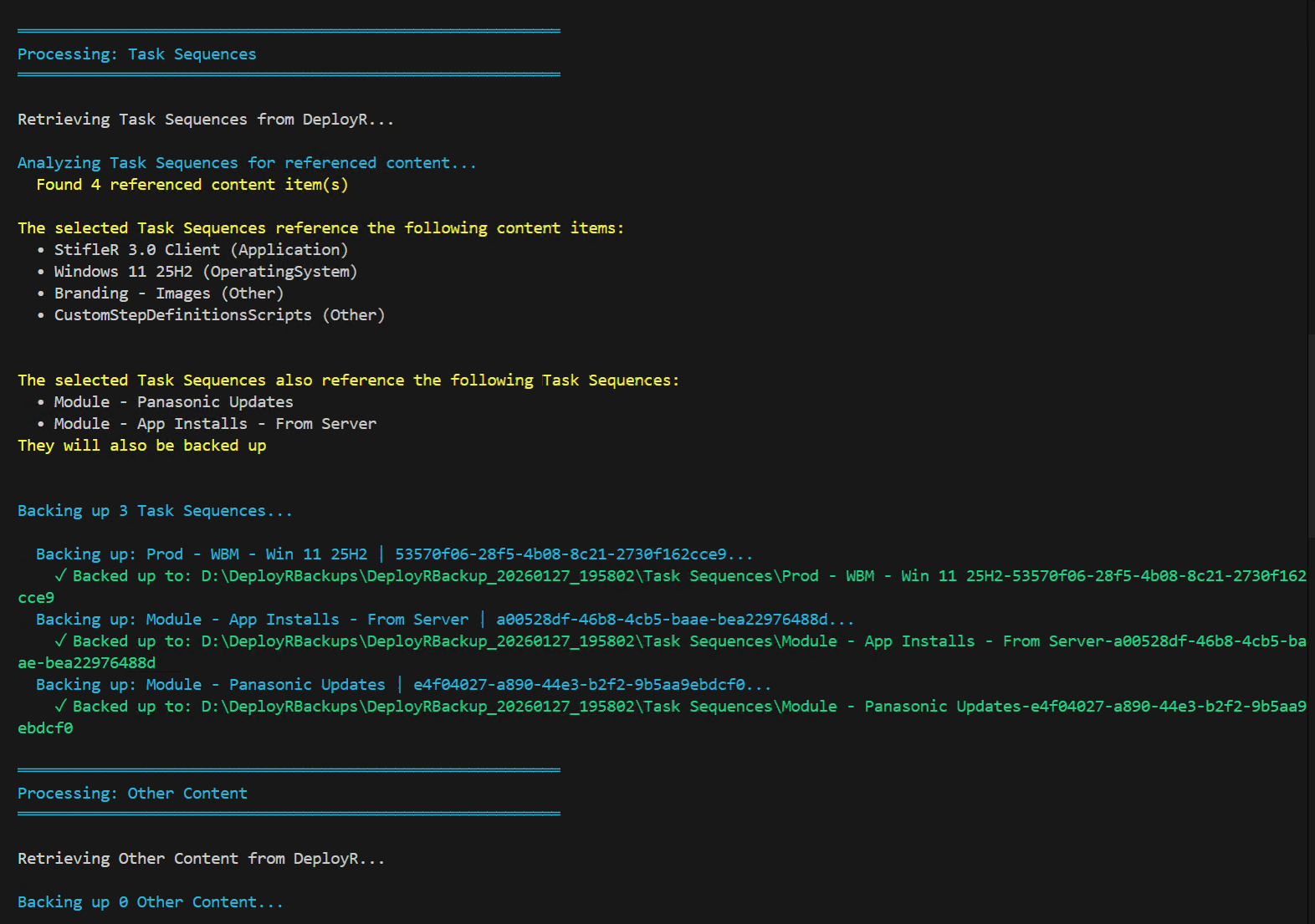
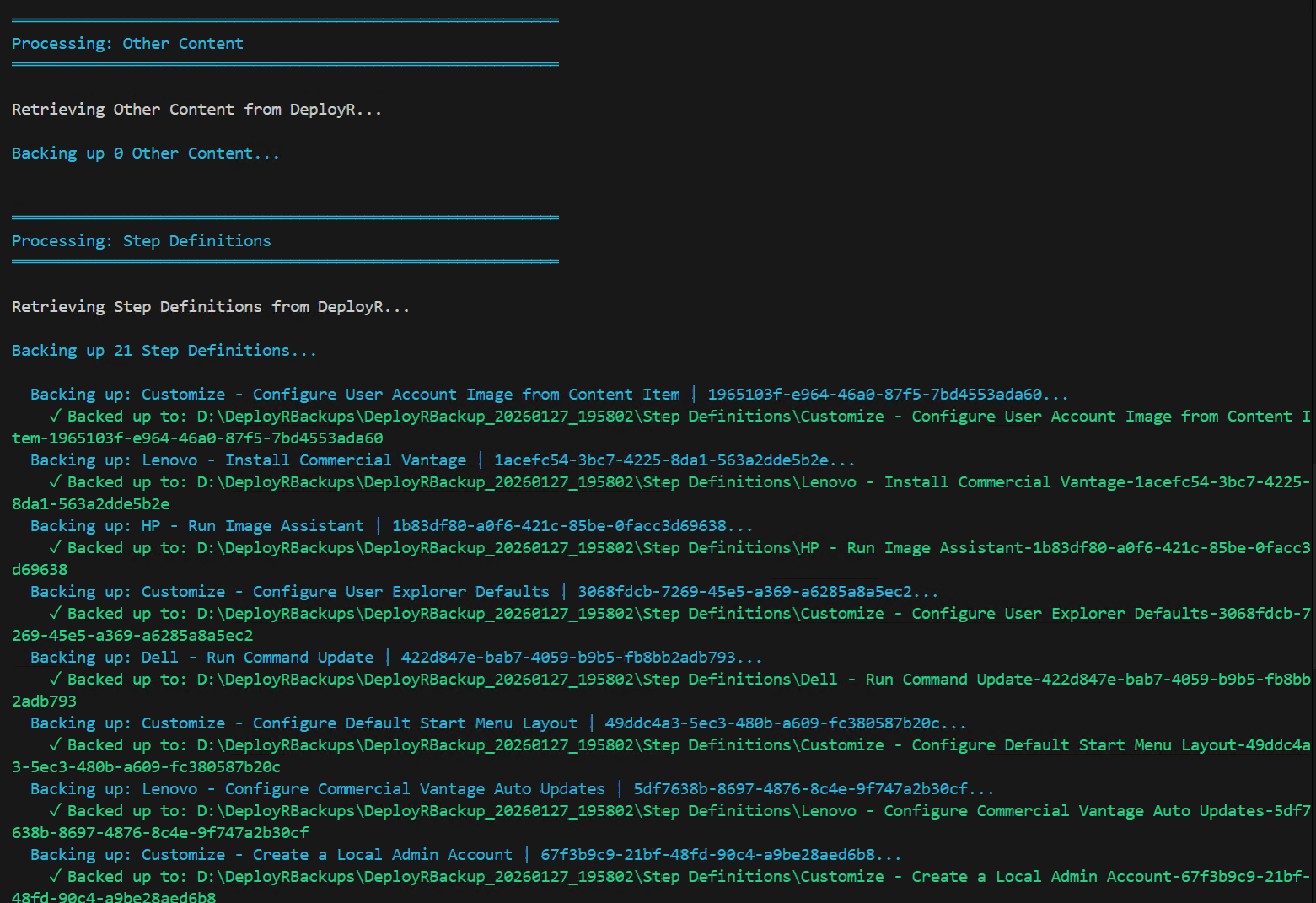

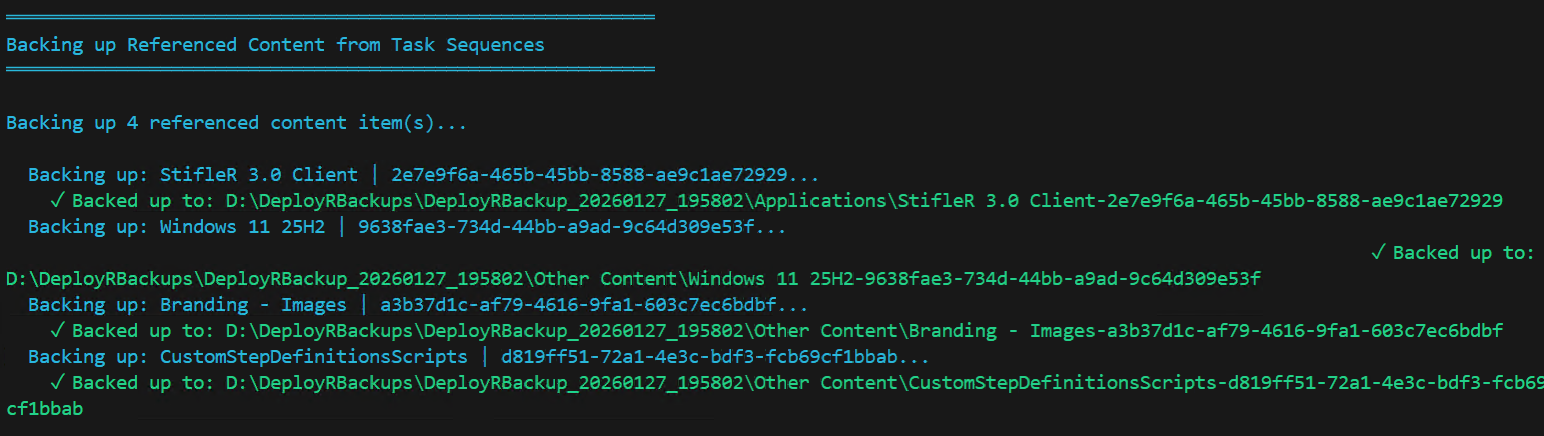
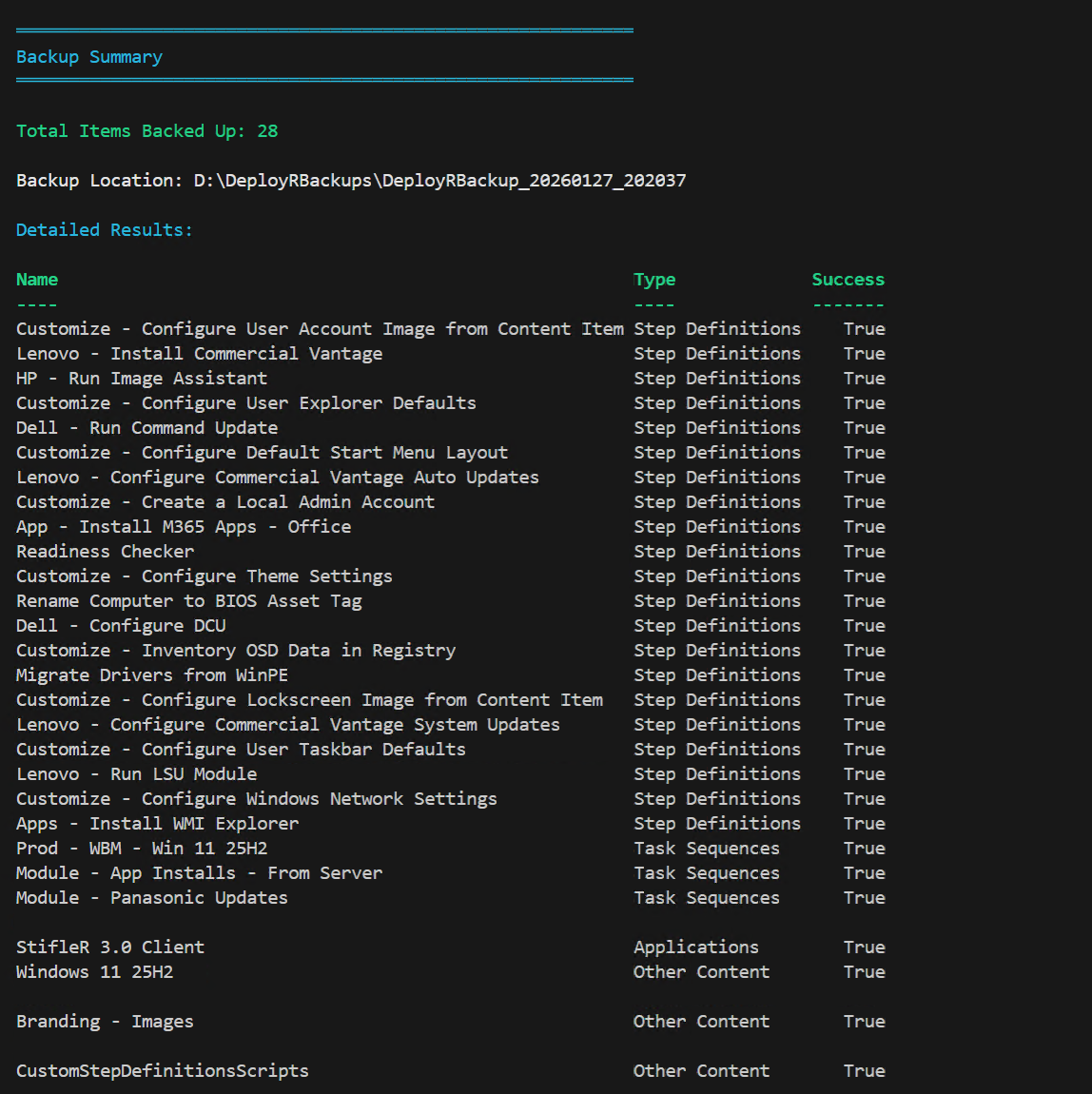
So that’s the script, then if we switch over to explorer, you can see the folders it created:
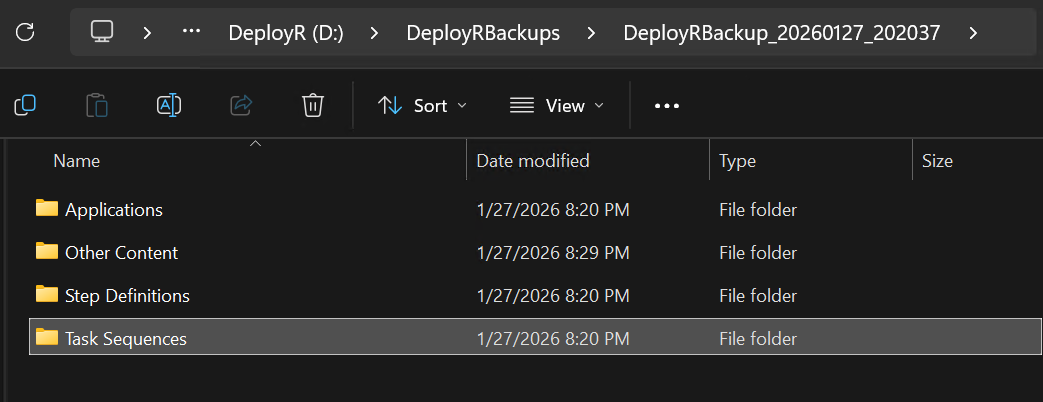
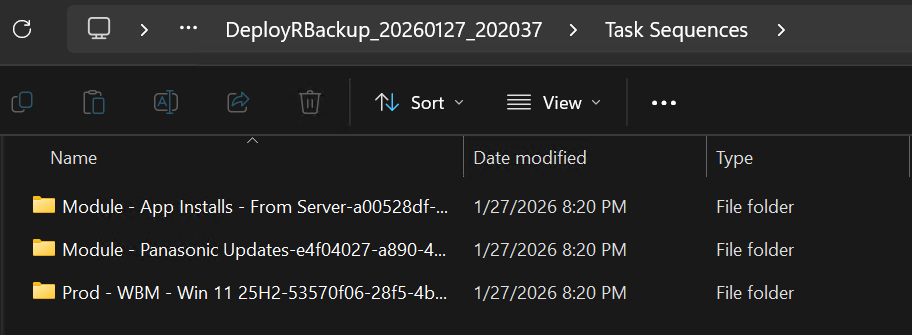
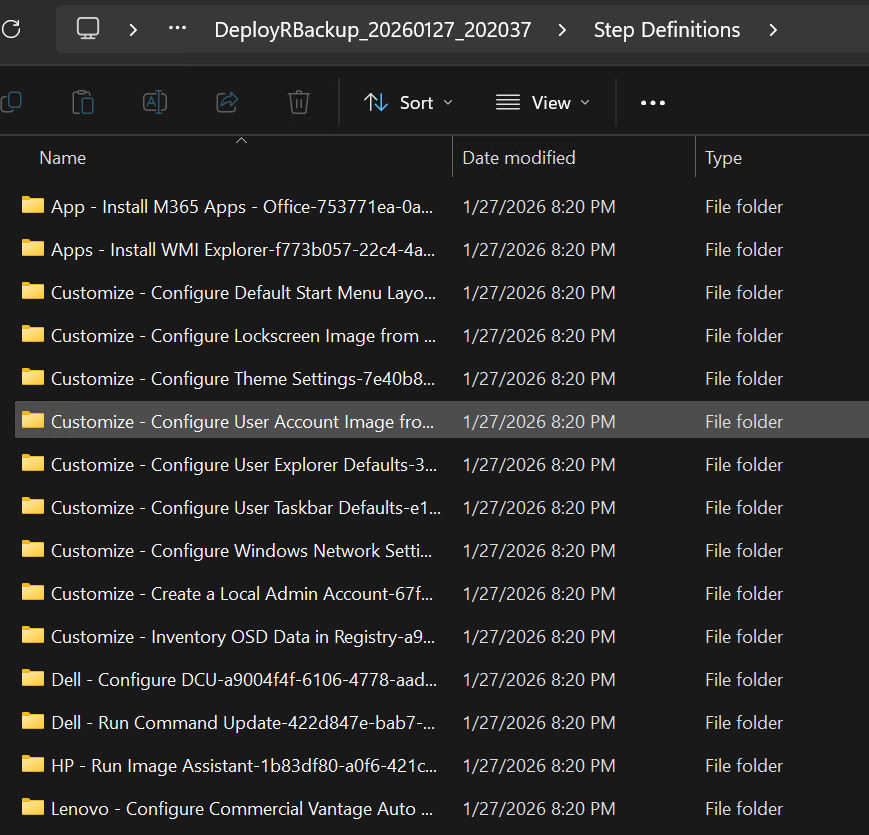
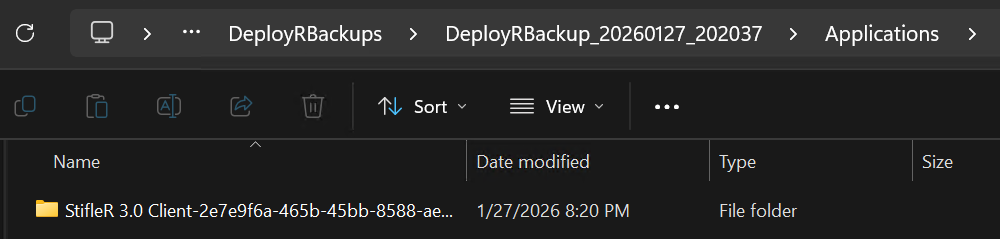
Now that we have our backup, we can copy it over to another server for restore:
Restore backup using Script
A few hours later, I transferred this 13GB file from my server in Azure to my Server here at home, and placed it into D:\DeployRBackups

I then kicked of the script, which searches that folder finds the most recent backup folder and starts the restore.
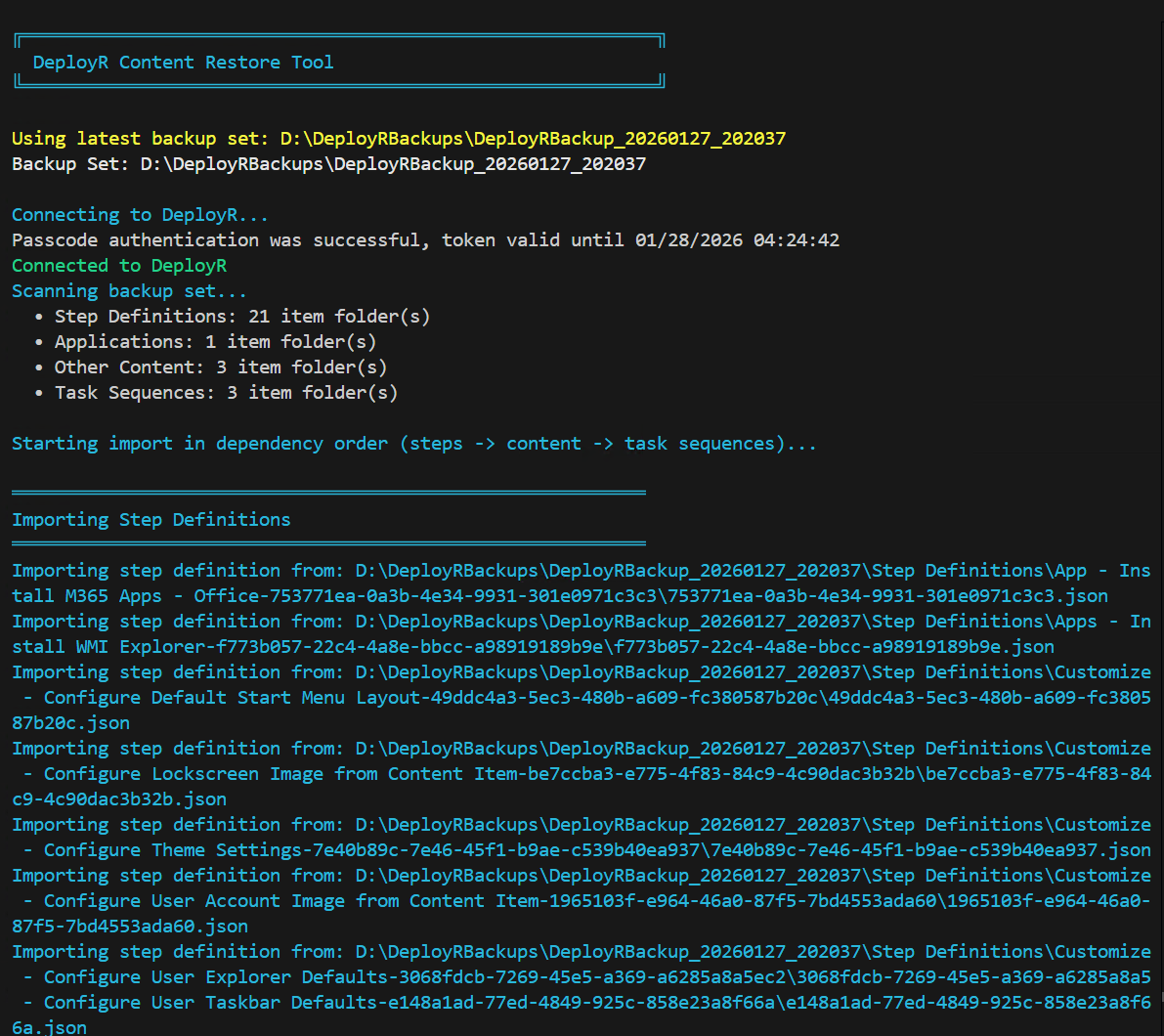
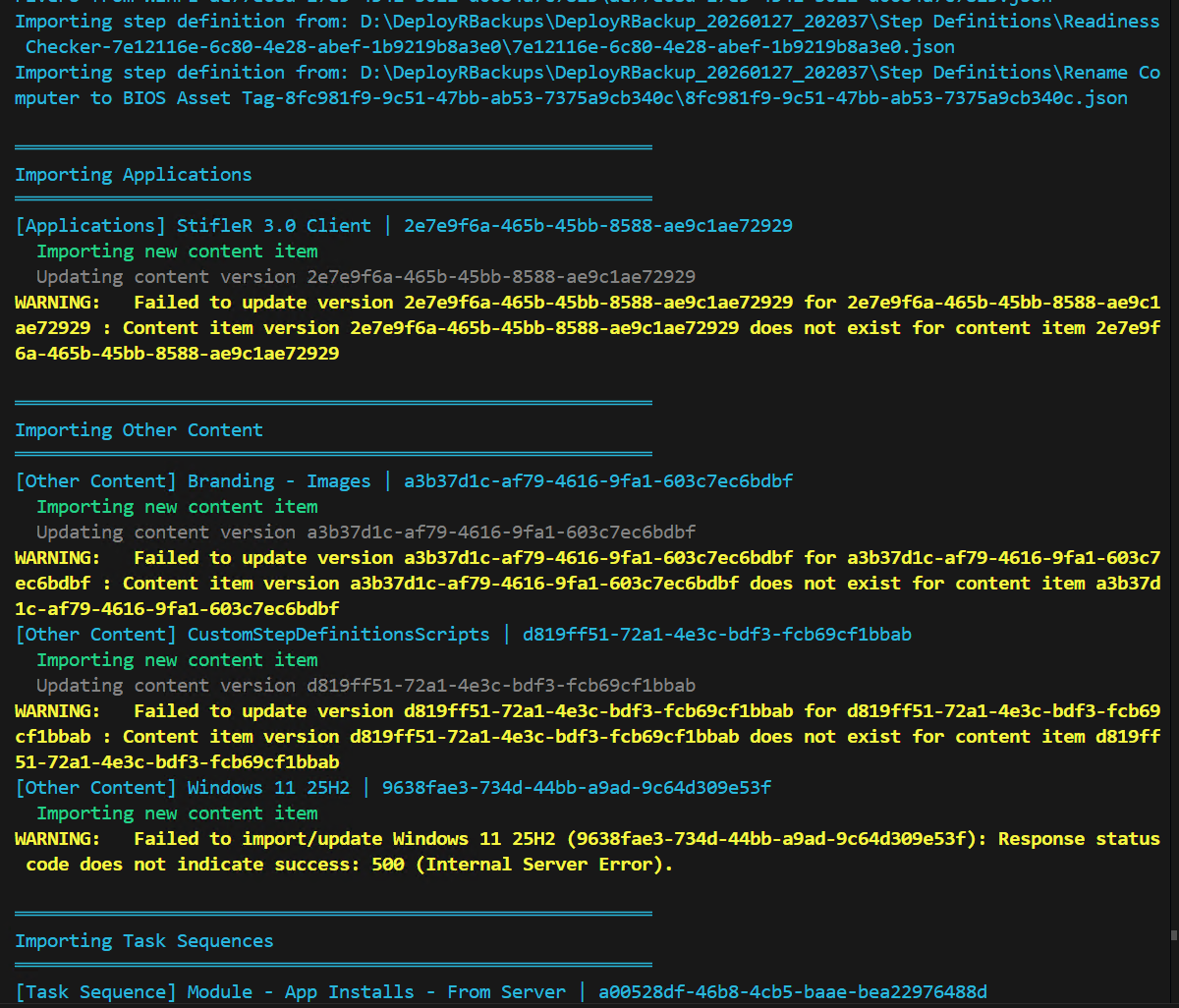
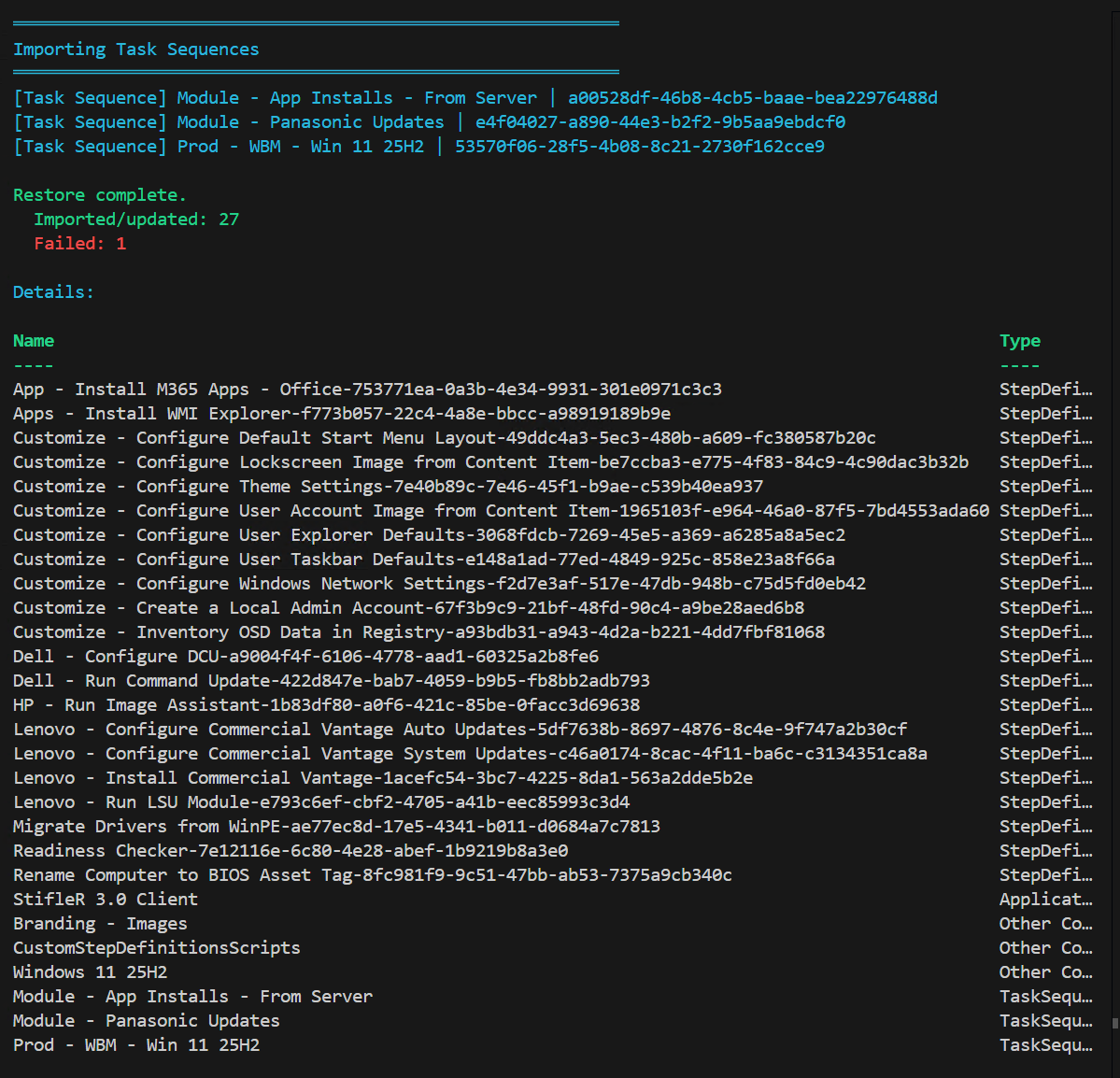
Here you can see the content items that were created:

And the task sequences:

So Pro Tip, it’s probably not worth backing up the OS Images and transferring those, that caused the biggest delay for me. Hope this helps in your journey down the DeployR road.
GARYTOWN.COM